



You probably have hundreds of tabs open right now. Or maybe you’ve curated a digital library of links buried in your bookmarks bar. Either way, those saved pages are your lifeline. Losing them during a browser update or when you swap out your laptop isn’t an option. You need a backup.
Exporting bookmarks from Chrome is straightforward, but the location of the feature is hidden enough that many users panic when they can’t find it immediately. Whether you are moving to a new machine or just want to ensure your history survives a system wipe, knowing how to back up these links is essential.
Here is how to save your browsing history without the headache.
Why You Need to Export Chrome Bookmarks
Syncing helps, but it isn’t a substitute for a local file. If you lose access to your Google account, or if the sync service glitches, those cloud-stored links might become inaccessible. A local HTML file acts as your personal insurance policy.
It also makes switching devices cleaner. Instead of manually recreating folders and links on a new PC, you can import the entire structure in seconds.
Steps to Export Chrome Bookmarks
The process is buried in the menu, not the settings page. Here is the exact path to your data.
1. Access the Bookmarks Manager
Open Chrome on your computer. Click the three vertical dots in the top-right corner. Hover over Bookmarks and lists, then select Bookmark manager. Alternatively, you can press Ctrl + Shift + O on Windows or Cmd + Option + B on Mac.
2. Locate the Export Option
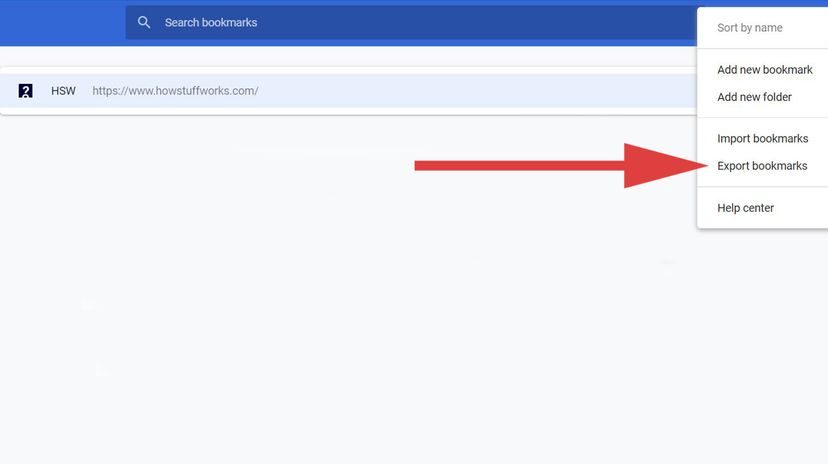
Once the manager opens, click the three vertical dots again, but this time it’s in the top-right corner of the manager window itself. Not the browser window. The manager window.
3. Save the File
Select Export bookmarks. A dialog box will appear. Choose where to save the HTML file on your computer. Name it something recognizable, like Chrome_Backup_October.html.
That’s it. The file contains all your bookmarks, including nested folders. It’s a plain text format, which means it’s lightweight and easy to transfer.
How to Import Chrome Bookmarks Later
When you’re ready to restore, the process reverses slightly.
1. Open the Bookmark Manager
Same as before. Use the menu or the keyboard shortcut.
2. Select Import
Click the three-dot menu in the manager again. Choose Import bookmarks.
3. Choose the File
Navigate to the HTML file you saved earlier. Select it. Chrome will merge those bookmarks into your current library. If you had existing bookmarks, they’ll sit alongside the new ones. If you want a clean slate, delete your current bookmarks before importing.
Common Questions About Exporting Chrome Bookmarks
Can I export bookmarks from Chrome on Android or iOS?
No. The export feature is desktop-only. Mobile browsers don’t offer the same file management capabilities. You must use a computer to create the backup.
Is the export file editable?
Technically yes, since it’s an HTML file, you can open it in a text editor. But don’t mess with it. It’s formatted specifically for Chrome’s parser. Editing it manually is risky and usually unnecessary.
**What if

The Mechanics of Moving Chrome Bookmarks
You have the HTML file. Now what?
The transfer process is brutally simple, though it relies on you being the courier. Email the file to yourself. Upload it to Drive, Dropbox, or whatever cloud bucket you trust. The medium doesn’t matter; the file travels with you.
On the new machine, the logic flips. You are no longer exporting. You are importing.
Open Chrome. Click the vertical three dots in the top right. Hover over Bookmarks and Bookmarks lists. Select Import bookmarks and settings.
A dialog box appears. Click Choose File. Navigate to that HTML file you saved earlier. Select it. Click Done.
That is it. Your digital library is restored. No sync errors. No missing folders. Just data.
Why Bother With the Export?
Browsers are sticky. They want you to stay. They build walls around your history, your passwords, your tabs. But life isn’t static. Your ISP changes. Your laptop dies. You get bored of Chrome and switch to Firefox or Edge.
If you rely solely on the browser’s internal sync, you are one glitch away from losing months of curated links.
Here is why that HTML file matters:
The Hardware Leap
You bought a new computer. You logged into Chrome. The bookmarks appeared, right? Usually. But what if you are changing your Google account too? Or what if the sync was paused for three days before the crash? An HTML export is a hard backup. It does not depend on server uptime. It sits on your hard drive. It is yours.
The Browser Switch
You hate the new Chrome interface. You want Firefox. Firefox cannot read Chrome’s database files directly without a messy conversion tool. But both understand HTML. Export from Chrome. Import to Firefox. The transition is clean. You keep your tabs. You keep your history. You just change the engine under the hood.
The “Cloud Isn’t Perfect” Factor
We are told the cloud is safe. It is mostly safe. But accounts get locked. 2FA fails. Servers go down. A water spill on a laptop is a physical reality that cloud backups cannot fix if the device is lost before the final sync. An HTML file is a tangible safety net. It is peace of mind in a .html format.
Common Questions About Bookmark Portability
How do I actually get the file out of Chrome?
It is in the Bookmark Manager. Open Chrome. Click the three dots. Go to Bookmarks > Bookmark Manager. In the new window, click the three dots at the top right. Select Export bookmarks. Save the file. Done.
Can I really export Google Chrome bookmarks?
Yes. Chrome has included this feature for years. It is not a hidden developer tool. It is a standard feature for anyone who wants ownership of their data.
What if I’m coming from another browser?
The logic is identical, just in reverse. Export from Firefox, Edge, or Safari. You get an HTML file. Import that file into Chrome. The browser handles the mapping. Your links survive the migration.