
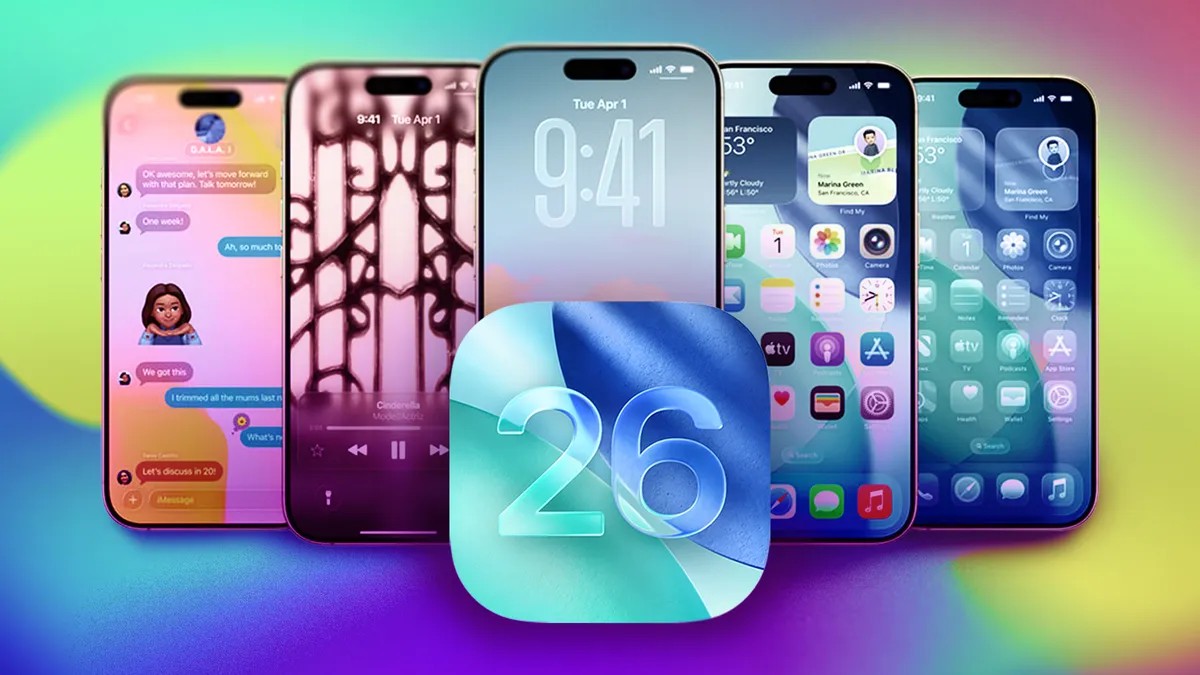
Apple’s latest iOS 26 update brought a major visual overhaul with its new “Liquid Glass” design, making elements translucent and subtly animated. While some users appreciate the modern look, others find it harder to read. Fortunately, iOS provides easy ways to adjust the transparency of Liquid Glass across your iPhone, making the interface more legible.
What is Liquid Glass?
Liquid Glass, introduced with iOS 26 in September, is Apple’s most significant interface change since iOS 7 in 2013. It gives menus, search bars, and other elements a translucent, “squishy” appearance. The intent is to create a more immersive experience, but this can reduce readability for some users.
Why Adjust the Design?
The initial developer beta of iOS 26 drew mixed reactions. Apple addressed some concerns by adding a frosted effect to improve clarity, but if you still find the Liquid Glass design distracting or hard to read, there are simple adjustments you can make. These settings will affect how menus, notifications, and even app elements appear on your screen.
How to Reduce Transparency
To darken Liquid Glass elements across your iPhone, follow these steps:
- Open Settings.
- Tap Accessibility.
- Tap Display & Text Size.
- Toggle Reduce Transparency to the on position.
This will dim translucent menus and controls, including in apps like Messages and the Control Center. The effect is immediate and noticeable.
Further Improvements: Increase Contrast
In the same Display & Text Size menu, you can also enable Increase Contrast. This adds a subtle white outline to Liquid Glass elements, making them stand out more clearly against the background. This is particularly useful if you have trouble distinguishing between icons or text.
Compatibility with Clear App Icons
If you’re using Apple’s Clear app icons (which prioritize background visibility), enabling Reduce Transparency or Increase Contrast may detract from the aesthetic. These settings can make the icons too prominent, shifting focus from the background. If you prefer the minimalist look of Clear icons, it’s best to leave transparency settings untouched.
Reverting to the Default Look
To bring back the original Liquid Glass design, simply follow the same steps and toggle Reduce Transparency off. The interface will revert to its default translucent appearance.
By adjusting these settings, iOS 26 users can customize the Liquid Glass design to suit their preferences, balancing visual flair with readability.