

Bluetooth headphones offer a convenient wireless listening experience, but connecting them to a Windows PC can sometimes be more complicated than it should be. With fewer devices having traditional audio jacks, Bluetooth has become essential for many users. This guide breaks down the process step-by-step, covering both common methods and troubleshooting tips to ensure a smooth connection.
Preparing Your Headphones
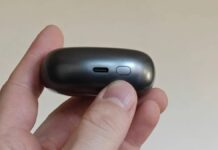
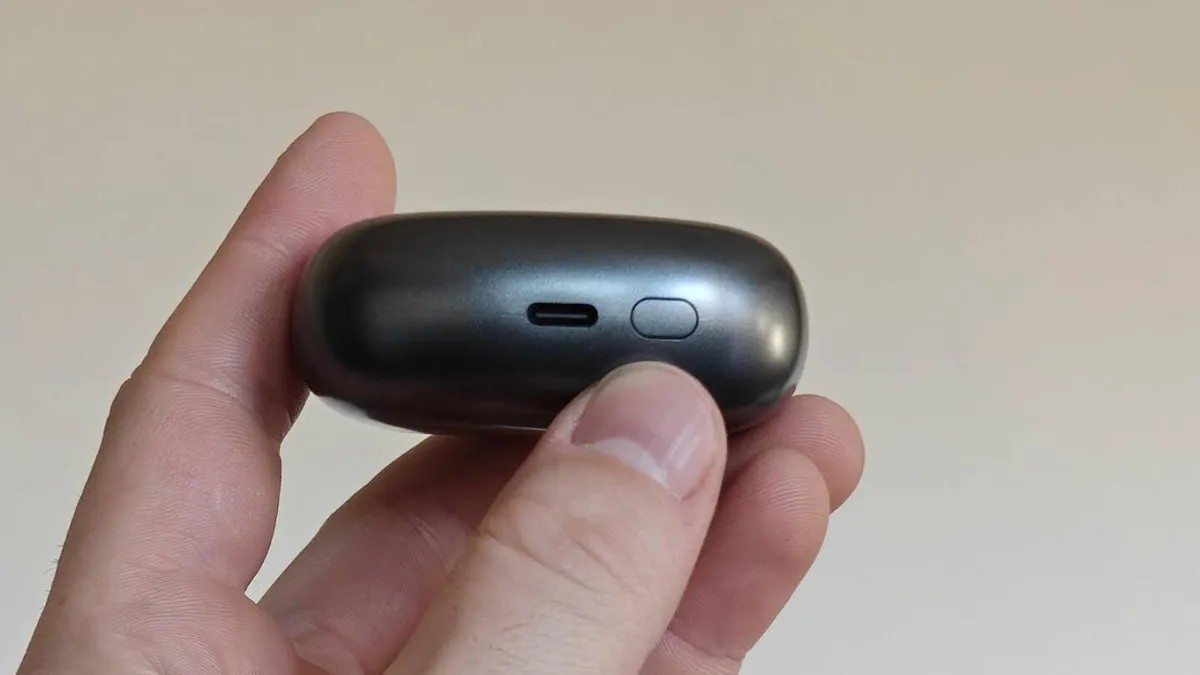
Before attempting to pair, ensure your headphones are in pairing mode. The exact method varies by device, so consult the product manual. Typically, this involves holding a pairing button (or the power button) for several seconds until an indicator light flashes rapidly, signaling readiness.
Why this matters: Pairing mode is crucial because it makes the headphones discoverable by your PC. Without it, the device won’t appear in the list of available connections.
Method 1: Using Quick Settings
The quickest way to connect is through Windows’ Quick Settings panel.
- Enable Bluetooth: Click the network/volume icon in the system tray (bottom-right corner). If the Bluetooth tile is grayed out or says “Off,” click it to turn Bluetooth on.
- Pair Your Headphones: Click the arrow within the Bluetooth tile to open a list of available devices. Your headphones should appear if they’re in pairing mode. Select them to initiate the connection.
If the device doesn’t show up, double-check that pairing mode is still active; headphones often time out after a few seconds.
Method 2: Through Windows Settings
If the Quick Settings method fails, try using the full Windows Settings app.
- Enable Bluetooth: Press the Windows key, go to “Settings,” and select “Bluetooth & devices.” Ensure the Bluetooth toggle is set to “On.”
- Add Device: Click “Add device.” Choose “Bluetooth” from the options.
- Select Headphones: Your headphones should now appear in the list. Select them, and Windows will attempt to connect.
Why this method can be more reliable: The full Settings app provides a more stable connection process compared to the potentially glitchy Quick Settings panel.
Troubleshooting Common Issues
Bluetooth connections aren’t always seamless. Here are solutions to frequent problems:
- Headphones Not Showing Up: Verify pairing mode is still active. Restarting the headphones can also help.
- Windows Won’t Connect: Refresh the device list by toggling Bluetooth off and on again. Ensure the headphones aren’t already connected to another device.
- Connection Fails: Disconnect any other Bluetooth devices that might be interfering.
- No Sound: Check the PC’s volume and ensure the Bluetooth headphones are selected as the default audio output device (right-click the volume icon in the system tray and select “Open Sound settings”).
Final Thoughts
Connecting Bluetooth headphones to Windows should be straightforward, but occasional glitches occur. Following these steps methodically and troubleshooting with patience usually resolves most issues. If problems persist, consider a wired connection as a reliable alternative.
Ultimately, Bluetooth convenience comes at the cost of occasional finicky behavior.