



The barrier to entry for advanced iOS management is practically nonexistent. That is the first thing you notice about 3uTools. It is free. There are no premium tiers, no student discounts, and no enterprise licenses hiding behind a paywall. Just a robust, fully-featured utility that handles the heavy lifting for your Apple devices without costing a cent.
Getting it running requires a specific setup. You need a desktop computer. The software supports Windows and macOS. It does not support Linux. It does not run on Android or iOS. You cannot manage your iPhone from an Android tablet using this tool. If you are on a Linux machine, you will need to look elsewhere. For Windows users, the experience is straightforward. Download the executable from a trusted source. The official site or reputable tech portals like Futura work. Accept the terms. Click through the installer. It works on Windows 7 and newer, including Windows 11. The compatibility is broad, which makes sense given the longevity of legacy hardware in some tech shops.
macOS support is newer but functional. You need a recent version of macOS. The installation mirrors standard Mac utility procedures. Select the correct build for your system. Proceed with the installation. Once set up, the logic is simple. Connect your iPhone or iPad via a certified USB cable. The software detects the device. The full suite of features unlocks.
Why 3uTools Beats iTunes for Power Users
The real value proposition here is not cost. It is capability. iTunes exists. It is built into macOS and used on Windows for decades. It manages media. It syncs databases. It performs basic restores. That is it. 3uTools does all of that and then dismantles the limitations imposed by Apple’s native tools.
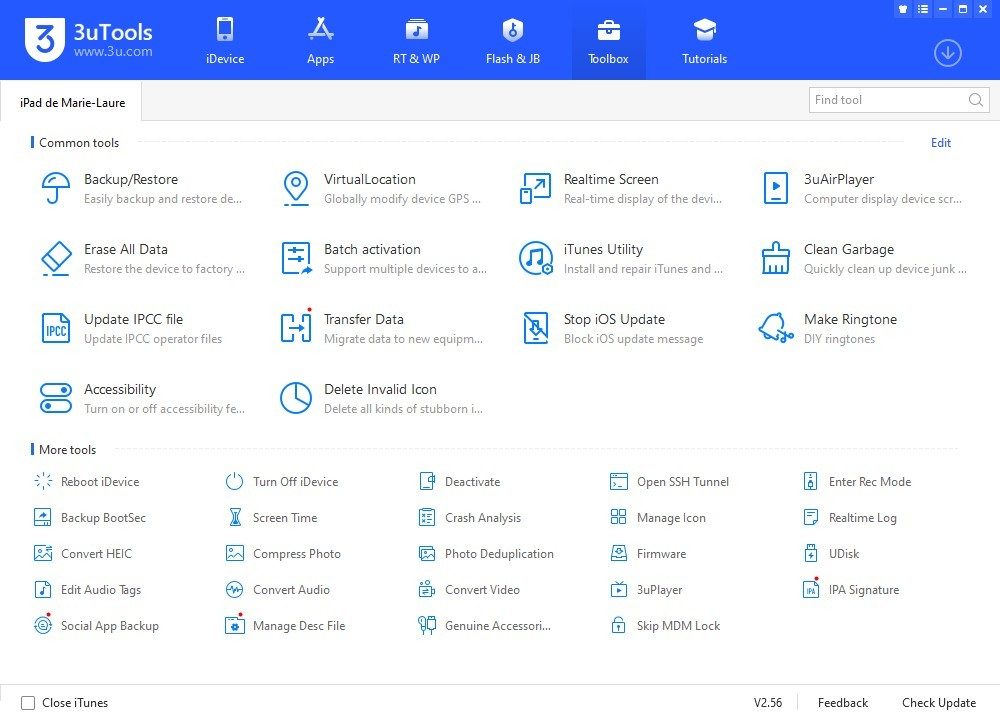
Consider file management. iTunes locks down the filesystem. 3uTools opens it. You can browse installed apps. You can access system files. You can manipulate data directly. This is crucial for troubleshooting or for users who want granular control over their device’s storage. The interface presents a dashboard of modules that iTunes simply does not offer.
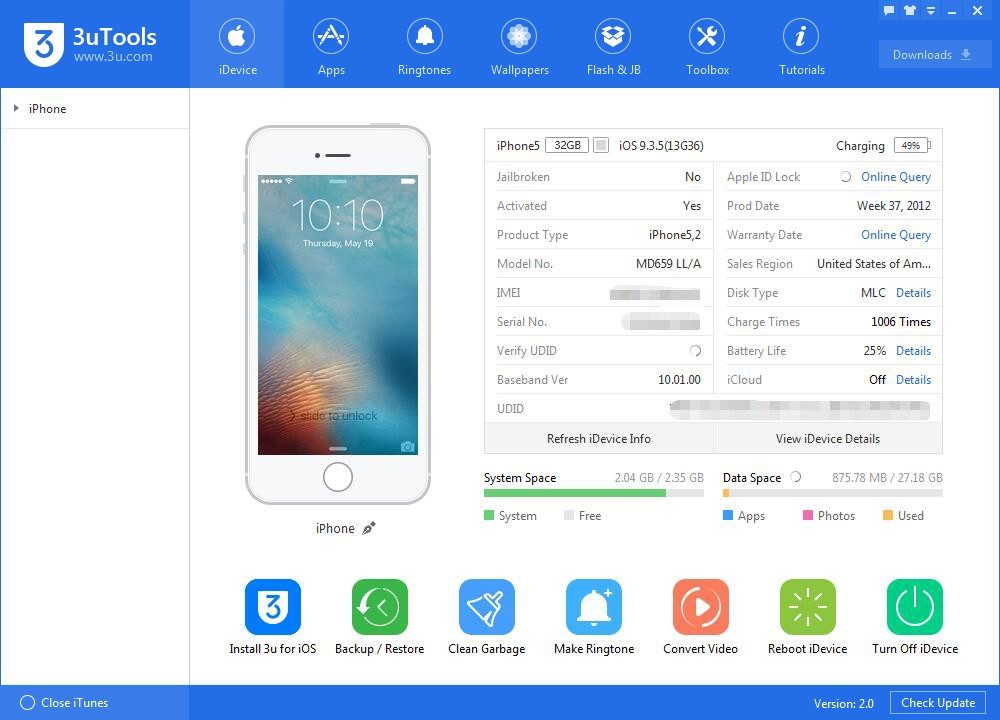
Battery health diagnostics are a standout feature. iTunes shows you basic status. 3uTools provides cycles, IMEI, UDID, and even battery temperature. Why does this matter? Because battery degradation is gradual. Seeing the cycle count and health percentage helps you anticipate failure before your device dies on you. It is also essential for resale. Buyers want proof of condition. 3uTools provides the data to back it up.
Managing Updates and Firmware Flexibility
One of the most frustrating aspects of iOS is the lack of control over updates. Apple pushes new versions. You receive them. Sometimes they break features you rely on. Sometimes they slow down older hardware. 3uTools addresses this with an “iOS Update Block” tool. You can prevent automatic updates. This is a lifeline for users stuck on a specific iOS version for compatibility reasons. Technicians use this to maintain stable environments for clients who cannot afford downtime or feature regression.
Firmware restoration is another area where 3uTools shines. iTunes can restore, but it often restricts you to the latest signed firmware. 3uTools allows you to manage older firmware versions. You can restore from backups created by the tool. The process is less restrictive. It removes the gatekeeping that Apple enforces through its proprietary protocols.
Beyond Basic Syncing
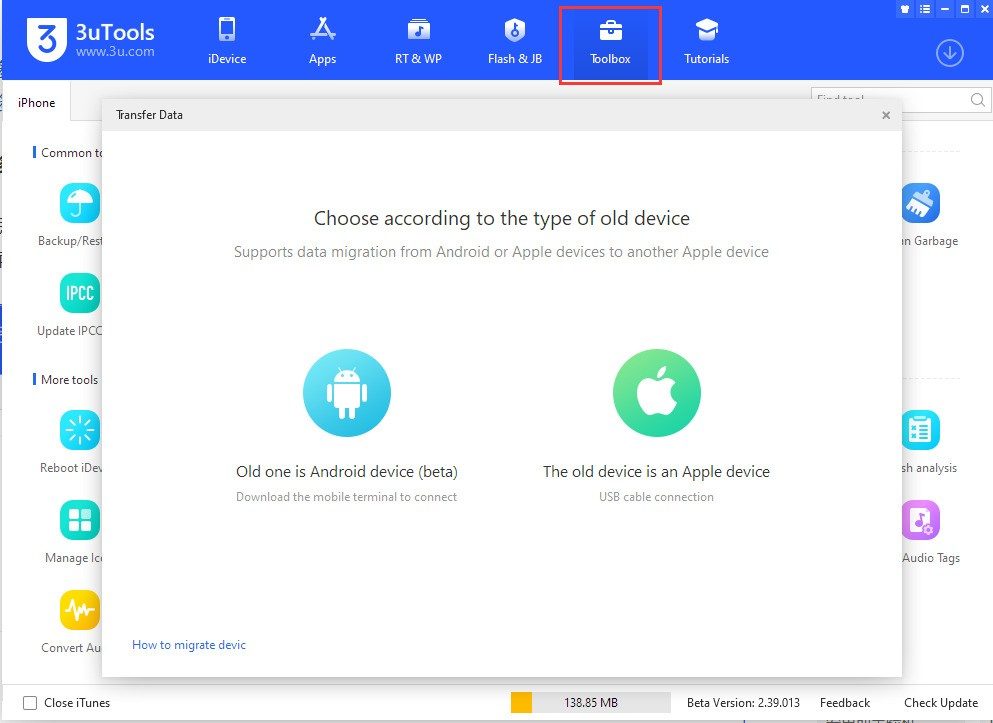
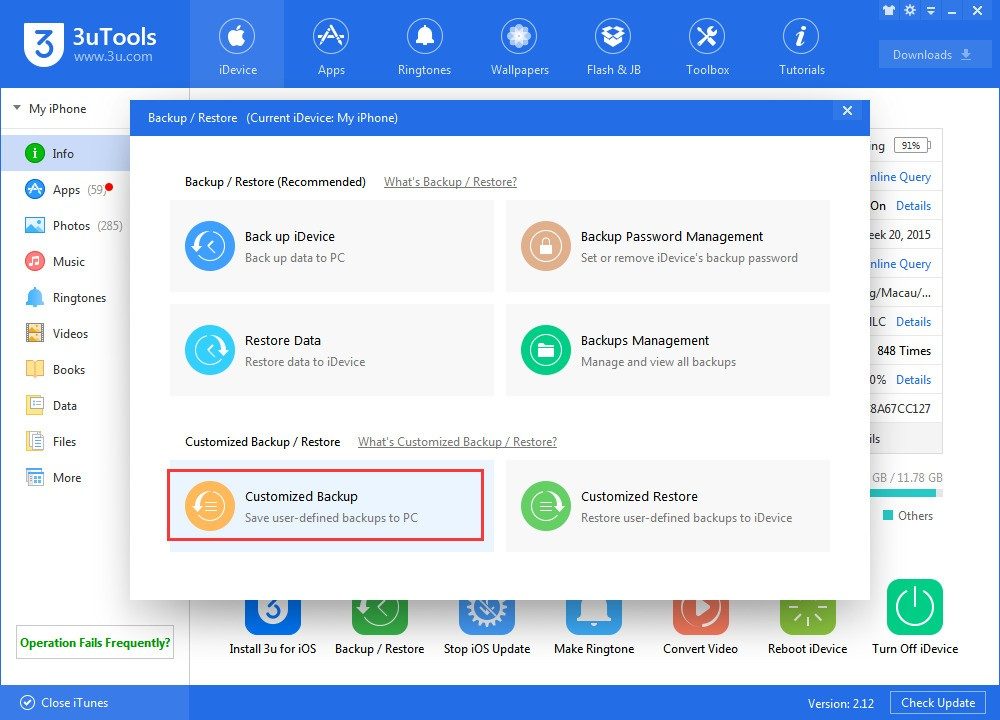
The software includes a built-in app store. This might seem redundant, but it integrates with other features. You can backup specific data types, like WhatsApp chats. You can cast your iOS screen to your PC. You can convert audio and video formats without leaving the interface. These are not afterthoughts. They are integrated modules that make 3uTools a control center rather than just a manager.
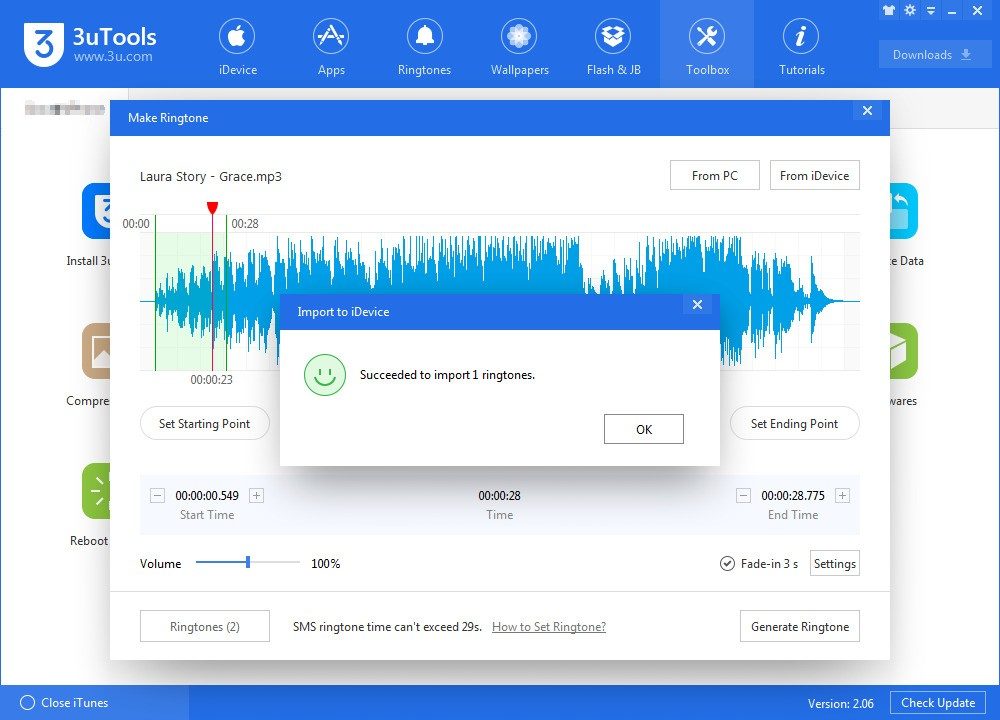
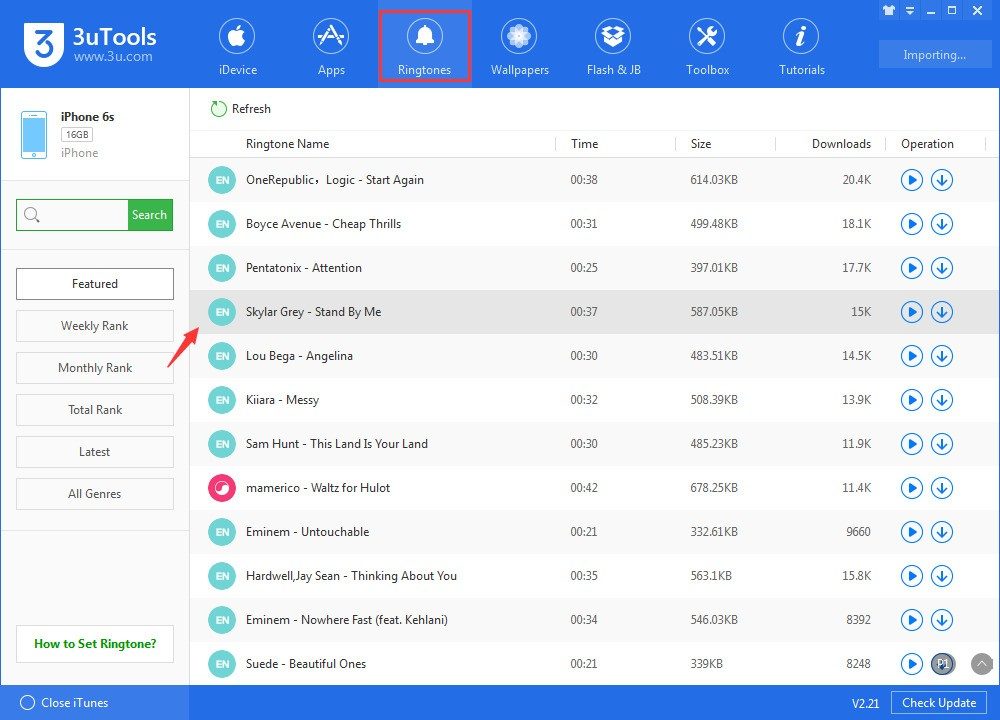
The difference in ergonomics is stark. iTunes feels rigid. It forces you into a specific workflow. 3uTools allows direct manipulation. You can set custom ringtones. You can change wallpapers without jumping through hoops. You can view system logs for diagnostic purposes. This level of detail is inaccessible to the average user through standard means.
Security remains a consideration. Since the software is free and popular, counterfeit versions exist. You must download from verified sources. An altered version could contain malware or spyware. The official distribution channels are the only safe bet. Once you are running the genuine tool, however, the experience is clean. No ads. No hidden trackers. Just functionality.
The shift from iTunes to 3uTools is not just about convenience. It is about reclaiming control over your hardware. Apple designs its ecosystem to be closed. 3uTools provides a key. It does not break the lock. It just gives you access to the mechanics behind the door. For many users, that access is the difference between frustration and control. The learning curve is shallow. The benefits are immediate. And the cost is zero.
Does this mean iTunes is obsolete? Not necessarily. For casual users who just want to sync music and photos, it remains sufficient. But for anyone who digs deeper into their device, who cares about battery health, or who wants to manage files directly, iTunes falls short. 3uTools fills that gap. It does so quietly. It does not demand attention. It just works. And in a world of subscription services and locked-down ecosystems, that simplicity is rare. You install it. You connect your phone. You see what is actually inside. The rest is up to you.
Keeping 3uTools Updated and Supported
Running outdated software is a security risk, plain and simple. You miss out on features, and you leave your data vulnerable. 3uTools handles this by checking for updates directly within the app. You can find the option under the main menu or in the “About” section. If a new build is live, the tool warns you and offers automatic download and installation. You can also manually check the official site. These updates usually patch compatibility issues with new iOS versions, add tools, polish the interface, or support newer iPhone models.
Sometimes you need an older version. Maybe your device runs legacy firmware, or you need specific legacy tools. The official site keeps archives, but use them with caution. Older builds may have unpatched security flaws and lack support for modern hardware. Mobile technicians use this flexibility to manage diverse device fleets, but the risk remains.
Support is mostly self-serve. There is a help section with step-by-step guides, FAQs, and video tutorials, primarily in English. French users are on their own regarding official support. You will likely need forums or specialized communities for localized troubleshooting. There is no official certification program, but the interface is intuitive enough for beginners to pick up quickly.
Connection issues? Check your USB cable first. Use a certified cable. Verify that your iPhone or iPad trusts the computer. Ensure drivers are installed. The built-in tutorials cover these common fixes and explain advanced functions in detail.
Security, Privacy, and Alternatives
Data privacy matters. 3uTools does not require an account. It does not sync data to the cloud. This limits the risk of personal data leaks during transfers or local backups. Everything happens locally on your machine.
Download only from official sources. Third-party mirrors compromise integrity and security.
Many users look for alternatives. iTunes is Apple’s official choice, but it is limited and cumbersome. iMazing, AnyTrans, and Syncios offer advanced data management, often for a fee or with trial limits. 3uTools stands out because it is free, simple, and centralizes many tools in one place.
However, power comes with responsibility. Functions like flashing firmware, blocking updates, or modifying system properties require caution. One mistake can lead to data loss or software damage. Document your steps. Use advanced tools only when necessary.
3uTools remains central for Apple users on Windows and macOS. It handles backups, customization, and maintenance. It is not perfect. But for many, it is the most practical solution for managing their devices without paying monthly fees or surrendering their data to the cloud. The balance between freedom and control is always shifting.
3uTools System Requirements and Compatibility
You can’t just drag and drop 3uTools onto a desktop and expect it to whisper sweet nothings to your iPhone. The software is free, but it demands respect for system architecture. It’s a desktop utility built by the 3uTools Team, falling squarely into the iOS management and backup category. If you’re running Windows or macOS, you’re in the target demographic. But here’s the catch: it’s not a cloud-native app. It’s local. It’s heavy. It needs you to hook things up.
The primary use case is straightforward. You want to back up an iPhone, restore a firmware, or flash a new IPSW file. For that to happen, the connection must be physical. USB is king here. Wi-Fi management is secondary at best. The software relies on the Apple Mobile Device drivers. If you have iTunes installed, those drivers are likely already there. If not, 3uTools bundles them. This is a critical dependency. Without the driver handshake, your Mac or PC sees a brick. With it, it sees a device ready for data extraction.
What Your Hardware Needs to Run 3uTools
Let’s talk specs. You’re looking at an x64 architecture as the standard. There is some x86 compatibility, but don’t bet your wallet on legacy 32-bit systems running this smoothly. The installer requires administrative rights. Yes, you need to give the software permission to write to system folders. This is standard for driver installation, but it’s worth noting if you’re paranoid about security.
The software itself is freeware. No subscriptions. No trials that expire in seven days. You download it, you install it, you use it. The interface supports English and Chinese, depending on the build you pull. This lack of account requirement is actually a feature for some. You don’t need to log in to use the core features. The operations are local. Your data doesn’t have to travel to a server to be backed up; it stays on your machine. That’s a significant privacy win for users wary of cloud sync issues.
Supported Devices and File Formats
Which devices play nice? The list is standard Apple fare. iPhones. iPads. iPod touches. If it has a Lightning port or a USB-C port and runs iOS, it’s compatible. The connection is wired. This isn’t AirDrop. You’re plugging in. The stability of the transfer, especially when flashing firmware or moving large video files, depends on this physical link. A loose cable during an IPSW flash can brick a device. Don’t let that happen.
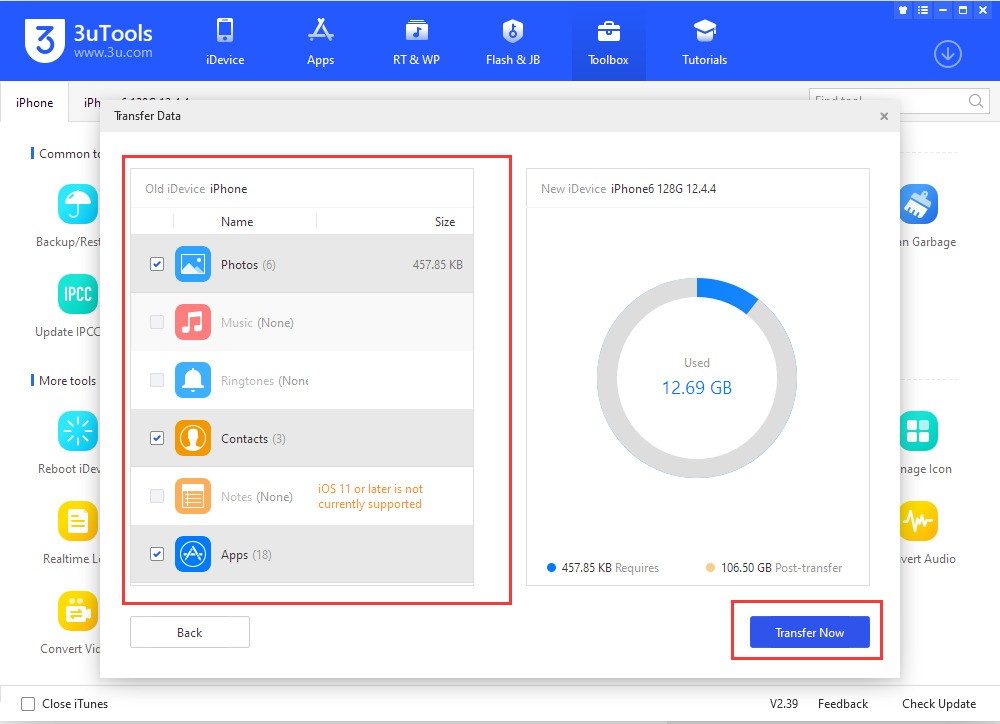
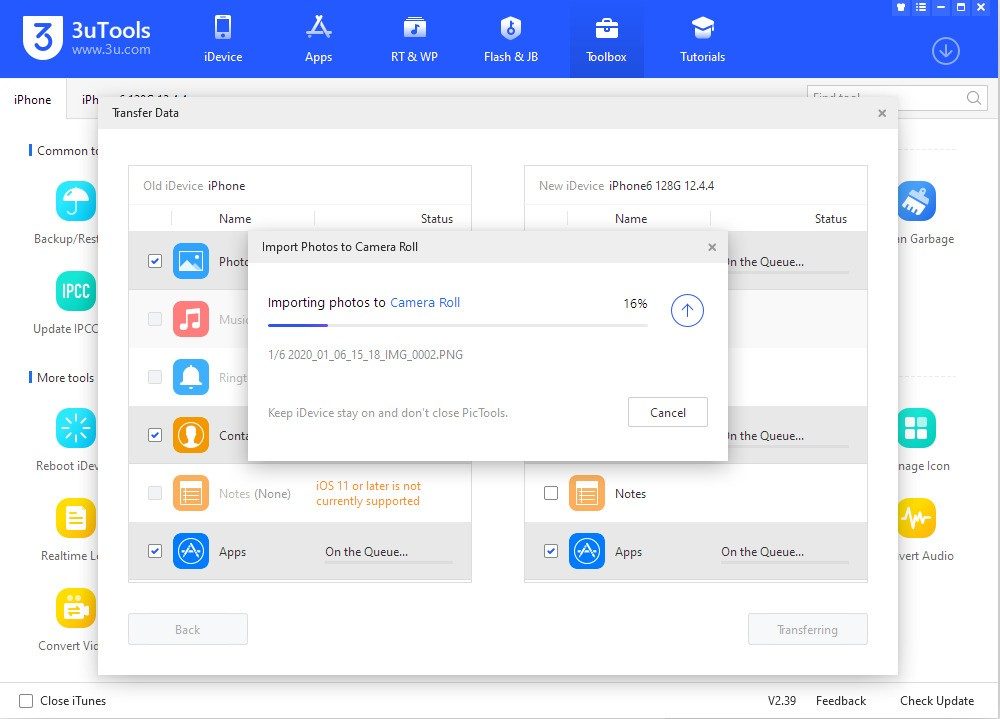
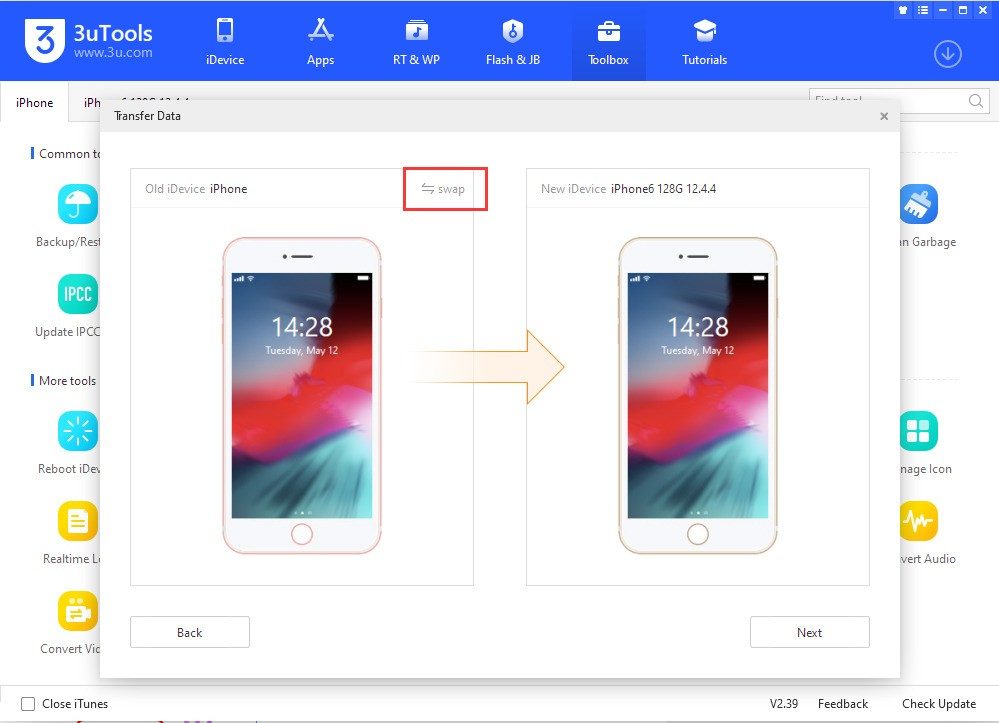
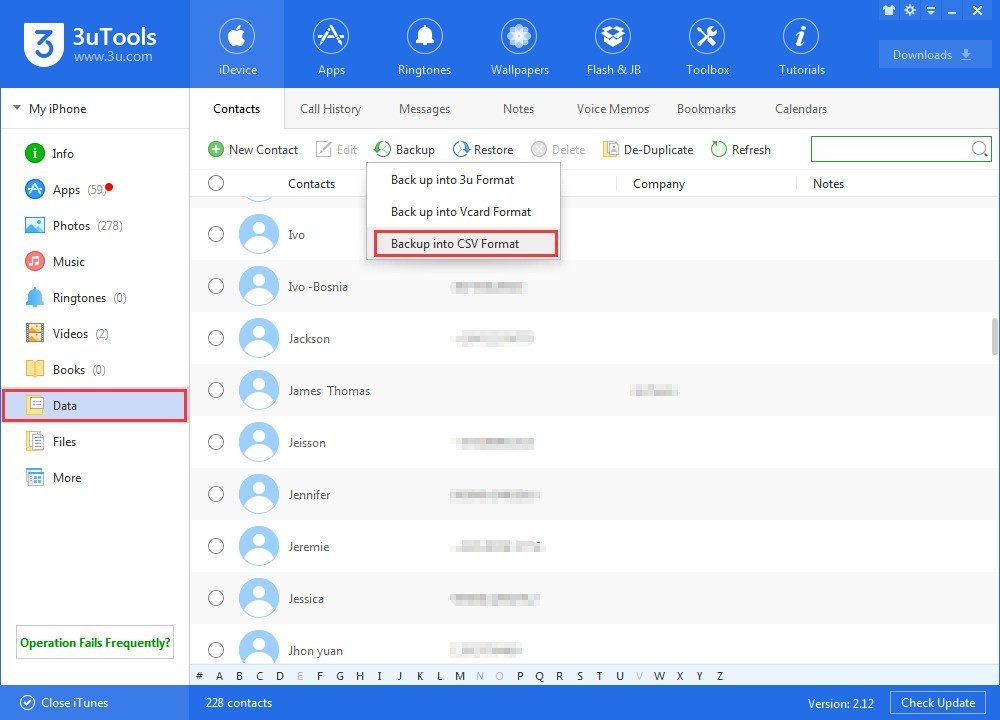
The file support is where 3uTools shines compared to basic iTunes backups. It handles IPSW files directly. It manages IPA files for app sideloading. It deals with HEIC photos, which is a lifesaver for Windows users who can’t natively view them. It converts HEIC to JPG on the fly. It handles M4R ringtones. MP4 and MOV video formats are supported for transfer. Contact lists and local backup archives are also in scope. This versatility makes it a Swiss Army knife for iOS maintenance, far exceeding the basic sync capabilities of Apple’s native tools.
“The software relies on the Apple Mobile Device drivers. Without the driver handshake, your Mac or PC sees a brick.”
Installation and Distribution
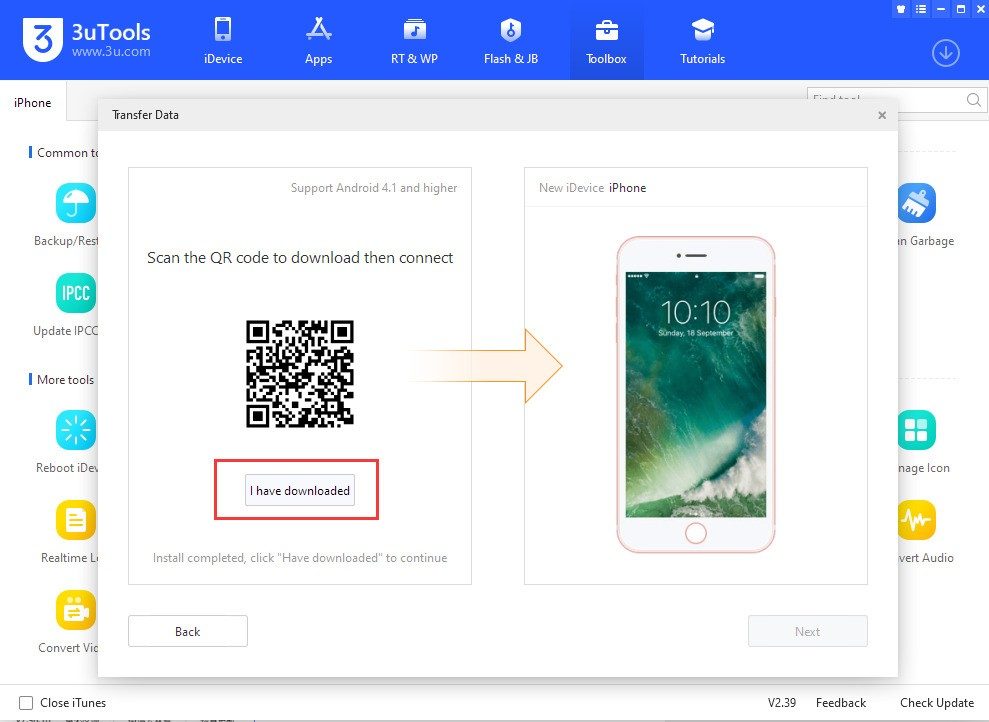
Where do you get it? The official source is 3u.com. There are mirrors, like Futura, but sticking to the source reduces the risk of bundled malware. The installation process is straightforward. Download the desktop installer. Run it. Accept the admin prompts. Let it install
The Shift to Event-Driven Architecture
The move away from monolithic blocks of code isn’t just a trend. It’s a necessity born from scale. When your application handles millions of concurrent requests, a single bottleneck can bring the whole system down. Event-driven architecture (EDA) solves this by decoupling services. One component produces an event. Others consume it asynchronously. No direct calls. No waiting.
This approach changes how we think about data flow. Instead of pushing data to a service, we publish changes to a shared channel. Kafka is the heavy lifter here. It’s not just a message broker. It’s a distributed streaming platform that keeps records for as long as you need. This persistence allows for replayability. If a service crashes, it can catch up without losing context.
Why Real-Time Processing Matters
Latency is the enemy of user experience. In e-commerce, a delayed notification means a lost sale. In finance, it means risk. Event streaming enables real-time processing. Data moves from source to destination in milliseconds.
Consider a fraud detection system. Traditional batch processing waits for the day to end. It reviews transactions after the fact. Too late. Event-driven systems analyze each transaction as it happens. An anomaly triggers an alert instantly. The system blocks the charge before the card is even swiped. This is why companies are migrating legacy pipelines to modern streaming tools.
Choosing the Right Tool: Kafka vs. RabbitMQ
Not all messaging systems are created equal. RabbitMQ excels at job queuing. It’s great for ensuring a task gets done exactly once. But it’s not built for high-throughput data streams. Kafka shines when you need to process massive volumes of data. It prioritizes throughput over complex routing features.
The choice depends on your use case.
- Use RabbitMQ for task distribution and simple request-response patterns.
- Use Kafka for log aggregation, real-time analytics, and data pipeline construction.
This distinction matters. Misunderstanding it leads to system failures under load. Kafka’s partitioning strategy allows it to scale horizontally with ease. RabbitMQ’s message routing adds overhead that doesn’t translate well to big data scenarios.
The Operational Cost of Streaming
Infrastructure complexity is the trade-off. Running Kafka requires Zookeeper or KRaft. It requires monitoring, tuning, and constant attention. If the cluster goes down, your entire event backbone stops. You need redundancy. You need disaster recovery plans.
Smaller teams might find this overwhelming. Managed services like Confluent Cloud or AWS MSK reduce the burden. They handle the uptime. They manage the scaling. But they come at a price. The cost scales with throughput. For high-volume applications, this can get expensive quickly.
Where Does This Go Next?
The convergence of streaming and serverless is interesting. Event-driven patterns fit naturally into serverless architectures. An event triggers a function. The function processes the data. It scales to zero when idle. This reduces costs for sporadic workloads.
But the real challenge is consistency. In a distributed system, ensuring that every service sees the same data at the same time is hard. Out-of-order messages. Duplicate events. These are the ghosts in the machine. Handling them requires careful design. Exactly-once semantics are possible but costly.
The future isn’t just about moving data faster. It’s about making it actionable immediately. As AI models become more