




Why switching apps feels like friction
You already do it. You check email in one window, jump to a browser to read a friend’s blog, then fire up an instant messenger to reply. It’s normal. But that constant context switching drags. It slows you down. And do you even know which web services are actually current? Most people just use what they remember from five years ago.
Leading software companies are trying to fix this. The goal is simple: make different programs talk to each other so you can create, share, and store information without jumping between disjointed tools. Microsoft’s answer was Windows Live.
What Windows Live actually is
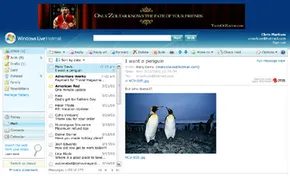
Windows Live isn’t just one program. It’s a bundle of integrated services and desktop applications. Think of it as a toolkit. It mixes local software like email clients and word processors with online services for file sharing, blogging, and remote storage.
Here’s the key detail: you don’t pay for it. All the applications and services are free.
Some parts live online. Others download to your hard drive. That hybrid approach meant you could work offline when needed and sync when you weren’t.
The email layer: MSN Hotmail and Windows Live Mail
Email is still the backbone of internet use. Windows Live leaned hard into that. It supported two main email experiences:
- MSN Hotmail : A web-based service. You logged in through a browser. No install required.
- Windows Live Mail : A desktop client. You installed it. It could pull mail from multiple accounts, not just your Windows Live address.
That second point mattered. If you had a Gmail account, a work inbox, and a personal Hotmail address, Windows Live Mail could aggregate them into one view. No more switching tabs.
Why this mattered to everyday users
Most people didn’t care about “integration” as a marketing term. They cared about speed. They wanted to send a photo to a blog, then forward an email about it, then chat with a friend about both, without losing their train of thought.
Windows Live tried to make that flow natural. The email client wasn’t just a mail reader. It was a hub. You could compose messages, attach files, link to blog posts, and store documents in the cloud, all from one interface.
The real value wasn’t in any single feature. It was in how those features fit together without forcing you to think about it.
What we’ll cover next
We’re going to dig into the specific email functions inside Windows Live. How they changed over time. What made them different from a standalone email client. How to set up an account from scratch. And what Microsoft was hinting at for the future.
No fluff. Just how it worked, why it worked, and where it fit in your daily digital life.
How Windows Live e-mail emerged from MSN Hotmail
The story of Windows Live e-mail starts back in 2001. Microsoft engineers were already moving toward an internet-based ecosystem, a strategic pivot away from their traditional reliance on boxed software and operating systems. The goal was flexibility: leaders wanted tools that could be patched, updated, and improved in real time without forcing users to install new versions.
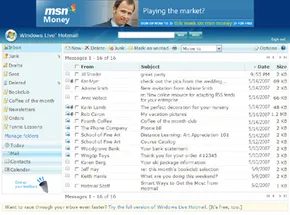
Bill Gates didn’t publicly tout the initiative until the fall of 2005. He framed it as a new era for web usage, targeting both individual users and small businesses. The formal shift happened on May 6, 2007. That was the day Windows Live Hotmail replaced MSN Hotmail in a global rollout. The service launched in 36 languages immediately, signaling Microsoft’s intent to make this a universal standard rather than a regional experiment.
Why Microsoft pushed for a live update model
Why the shift? Microsoft needed better visibility into how people actually used their software. By moving services to the cloud, they could track usage patterns and adapt to growing competition faster. The platform wasn’t just for the average user opening an email client. It also targeted tech-savvy individuals who wanted to tinker with the system.
Microsoft leaned heavily on public feedback to drive this development. They frequently released beta versions of new features, inviting users to download, test, and critique performance before the tools went mainstream. This “early public feedback” loop allowed the company to refine products continuously, meeting the evolving demands of web users without waiting for annual release cycles.
Which versions are free and which cost money
The base Windows Live e-mail service is free. But that’s only part of the picture. Microsoft built a tiered model into the platform. The lowest level of service relies on advertising revenue. Users get their email, but they pay with their attention.
For those wanting more, Microsoft offers higher levels of functionality through subscription payments. This created a dual revenue stream: advertising from the free tier and direct payments from the premium tier. It allowed the company to keep the core product accessible while monetizing the power users who wanted extra control and features.
The goal is continuously updating products and launching new ones to meet the evolving demands of Web users.
This approach meant the suite was never static. It kept adding products and updates long after the initial repackaging of Hotmail and Messenger. The system evolved because Microsoft needed to stay ahead of demand in a crowded market.
How much storage does Windows Live Hotmail offer?
The storage bump is the headline feature here. You get 5 gigabytes. That sounds like a lot until you do the math: roughly 1,000 MP3 files or three two-hour movies. For a casual user checking email between meetings, that’s plenty. You won’t run out of room unless you’re treating your inbox like a hard drive.
“It can store three, two-hour movies or about 1,000 MP3 files.”
Why does the new Hotmail interface resemble Microsoft Outlook?
Because that’s the ecosystem it’s built into. The layout, the reading pane, the drag-and-drop organization. If you’ve used Outlook, you’re not learning a new system. You’re just using a different front-end.
Longtime users can switch to the “Classic” look if the new design feels off. But the default view mimics Outlook’s logic. You can pick from several layouts, colors, and toolbars. It’s customizable. Not just cosmetic changes, but functional ones. The setup should match how you actually read email.
How does Windows Live Hotmail handle security and spam?
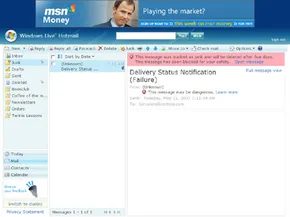
It’s simpler than before. Color-coded icons tell you at a glance if an email looks suspicious. One click deletes the junk. That’s it. No digging through settings to enable filters.
The system also includes anti-virus and spyware protection. It’s not a standalone antivirus suite, but it’s integrated enough to keep your inbox clear of the worst threats. The preview window and reading pane make it easier to spot red flags before you open anything.
- Image blockers : Stop spammers from using tracking pixels.
- Reading panes : Quick views without opening every message.
- Drag-and-drop : Organize emails visually.
- Right-click menu : Reply, delete, print, or manage folders without hunting for buttons.
- Automatic address completion : Type the first few letters, and it fills in the rest.
- Mobility : Access email from a web-enabled phone, smartphone, or PDA.
- Customized filters : Set rules for how specific senders or keywords are handled.
Which email clients work with Windows Live Mail?
If you don’t want to download mail to your computer, Windows Live Mail lets you visit your boxes across the web. It’s a lightweight client. Clean design. Familiar to anyone who used Outlook Express.
It’s not just for Hotmail. You can connect to:
– Yahoo Mail premium accounts
– Google’s Gmail
– Other supported providers
You can also open a Windows Live Messenger account from inside the inbox. Chat with your buddies without switching windows. It even lets you check your friends’ Windows Live Spaces blogs.
And if you do want to keep things local, Windows Live Mail stores email directly on your computer. That helps with long-term archiving. You’re not dependent on the server keeping your old messages.
It’s a simple, cleanly designed program. It adds features like photo email, which is nice but not essential. The real value is in the integration: email, messaging, and social networking in one place. Whether that’s a good thing depends on how much you like bundled software.
Setting Up Your Windows Live E-mail Account
You’ve got the spam filters running in the background. Now, the practical side. How do you actually get the account up and running?
The process is straightforward, but it requires patience during the verification step.
- Register. Go to the Windows Live E-mail signup page. You’ll need to pick a username that isn’t already taken. This can be annoying if you want a specific name.
- Verify. Microsoft sends a code to your current email address (or phone number, if you prefer). Enter that code to confirm you’re a real human.
- Configure. Set your password. Make it strong. If you’re linking multiple existing accounts (like a Gmail or Yahoo inbox), you’ll add those here too. This is where the “multiple e-mail accounts” feature from the previous section comes into play.
Why link them? Because Windows Live Mail (the desktop client) and the web interface treat your inbox as a single hub. You don’t want to juggle five different tabs. You want one view.
Managing Your Inbox in the Client
Once the account is linked, the desktop client does the heavy lifting.
The interface is dated but functional. The key feature to remember is the visual warning system. It’s not just a text alert. It’s a distinct visual flag on the message.
If an email looks off, you have two choices:
– Delete and Block. This kills the message and adds the sender to your block list. No more emails from that address will land in your inbox.
– Mark as Spam. This trains the filter. The message moves to your junk folder, but the sender isn’t permanently blocked.
Which is better? It depends. If it’s a one-off phishing attempt, “Mark as Spam” is fine. If it’s a persistent, annoying sender, “Delete and Block” saves you the trouble of clicking again next week.
Why the Anti-Virus Filters Matter
The built-in filters aren’t just about deleting junk. They scan for malware attachments.
This is critical because most modern viruses don’t come in as obvious .exe files. They come in as zipped documents, fake invoices, or “urgent” system updates. The anti-virus filter catches these before you even open the attachment.
You don’t need to install a third-party scanner for every email. The filter is already there. It’s working in the background, checking each incoming message against known threat signatures.
Troubleshooting Common Issues
Sometimes things go wrong. Here’s what to look for:
- Emails aren’t syncing. Check if your Windows Live Mail client is set to “Check for new messages” automatically. If it’s set to manual, you have to hit the refresh button.
- Legitimate emails are landing in Spam. This is the most common complaint. Go to your Junk Email folder. Find the message. Click “Not Spam.” This tells the filter that this sender is safe. It’s a training process. The more you do it, the smarter the filter gets.
- “Delete and Block” isn’t working. If you blocked a sender but emails still come through, it’s likely because they’re sending from a different IP address or a slightly different email alias. The block list is strict
Importing contacts and managing your new mailbox
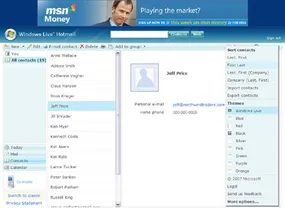
Getting your data over is the first real test. If you are moving from Microsoft Outlook or Outlook Express, the process is almost frictionless. Click the import area, download the tool, run the wizard, and follow the prompts. Your address book lands in your new Hotmail inbox without much fuss.
Then dig into the “Options” menu. This is where you actually take control. You can edit your personal profile, set up rules to forward messages, or send emails from other accounts through your Windows Live hub. If you are traveling or offline, you can configure automated replies so people know you are away. Junk mail filtering lives here too, along with options to change the theme, switch languages, and tidy up those imported contacts.
Getting the Windows Live Mail client running
The web version is convenient, but many users want the desktop experience. To get Windows Live Mail, you simply download the installer. During that process, you might see prompts for other Windows Live programs, but you can skip them if you only want the mail client.
Once installed, you plug in your Windows Live ID and password. It will pull your existing account right in. Need another address? Click “Add e-mail account” and fill in the details. The interface looks familiar if you have used Outlook. It is structured similarly to the web version and other desktop clients. Look for the “Show menu” icon in the upper right corner during initial setup. That is your gateway to customizing the layout, toolbar, and menus. It is not hidden. It is just waiting for you to click.
How Windows Live e-mail evolved and what it meant for users
Microsoft did not treat Windows Live as a static product. They built it as a living suite, designed for constant updates. Engineers added dozens of features over time, often reacting directly to user feedback. Some users agreed to let Microsoft monitor their software use to spot bugs and identify improvements. This feedback loop meant the tools kept getting sharper.
It also positioned the platform to address a bigger problem: fragmented communication. At the time, users were juggling separate apps for email, voice mail, and instant messaging. Windows Live pushed toward unifying these tools under one umbrella. By integrating services and committing to regular updates, Microsoft positioned Windows Live e-mail to lead the charge in merging these disparate channels. It was a bet that users wanted one place to manage all their digital interactions, not five different tabs.