




USBFix is not just another antivirus. It is a specialized tool for the dirty work that general security suites often ignore. Specifically, it targets removable storage. Keys, external hard drives, SSDs. These are the vectors. They carry malware from machine to machine. The software runs on Windows. It is free. It strips away the bloat to focus on one job: cleaning infected drives before they infect your PC.
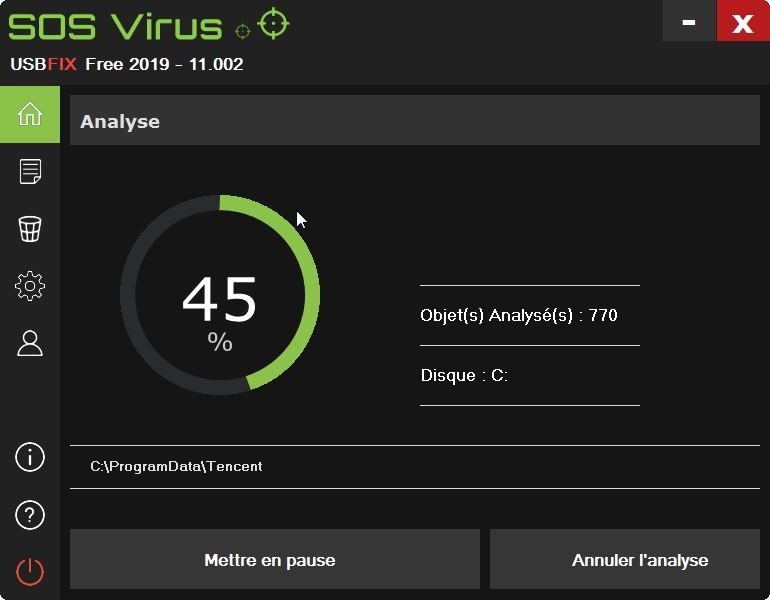
The interface is sparse. There are no flashy dashboards or complex settings menus to navigate. You click. The program scans. It finds the bad actors. USBFix identifies suspicious files, potential threats, and unwanted software hiding on external media. It does not just delete them. It repairs the file system. This matters. When a drive is compromised, folders often get hidden or corrupted. USBFix fixes that. It restores access to data that viruses tried to lock away.
How USBFix Handles Specific Threats
Standard antivirus software scans your system memory and running processes. USBFix scans the storage itself. This distinction is critical for IT professionals and everyday users who swap drives between computers. The threat landscape has changed. We are no longer dealing with simple viruses. Trojans. Worms. Spyware. Adware. These threats nest in USB ports. They wait for the next user to plug in a clean drive and spread the infection.
USBFix doesn’t just remove viruses. It repairs the file system damage they cause, restoring access to hidden or corrupted folders.
This versatility protects the host system. If you are a professional handling client data, or a gamer swapping external SSDs, you need this layer of defense. The software uses a regularly updated signature database. This means it catches new threats. It does not rely on old definitions. It is a complement to your main antivirus. Think of it as a specialized scrub brush for the edges your main security tool might miss.
Windows Compatibility and Download Considerations
Not every OS is covered. USBFix is built for Windows. It supports a wide range of versions. You can run it on Windows XP, Vista, 7, 8, 10, and 11. This is not a minor detail. Many businesses still run legacy systems. Educational institutions often have older PCs. USBFix ensures these machines get protection against external threats. The installation is fast. It is designed for quick deployment. You download it. You run it. You are protected.
But there is a catch. Mac users. Linux users. Android and iOS users. The software does not exist for them. This is not an oversight. It is a technical limitation. USBFix was engineered specifically for the Windows environment. It relies on specific system architectures to function. If you are on a different platform, you need a different solution. There is no universal cross-platform version.
Where to Get USBFix Safely
The software is free for personal use. This accessibility is a major plus. However, “free” attracts bad actors. You must download from official sources. Futura-Sciences is a recommended source. Do not click random links on third-party download sites. You risk getting a modified version. The real version needs to be updated. Check for updates regularly. If the option is available, enable automatic updates. Threats evolve daily. Your tool must evolve with them.
The simplicity of the download process is intentional. It removes friction. You do not need an account. You do not need to fill out a long form. You just need the tool. But the onus is on you to get the right file. A corrupted installer defeats the purpose of security. Stick to trusted sources. Verify the integrity. Ensure you are getting the authentic, unaltered version.
Why This Matters for Everyday Users
We live in an era of shared devices. Coffee shops. Libraries. Office computers. We plug in our drives. We copy files. We disconnect. It takes seconds. In those seconds, malware can jump. USBFix interrupts that chain of infection. It stops the spread. For the average user, this is peace of mind. You do not need to be an IT expert. You just need to plug in the drive and hit scan.
The repair function is the unsung hero here. A virus can make your drive look empty. It hides your files. It creates fake folders. You might think you lost your data. USBFix uncovers it. It fixes the directory structure. It is not just a cleaner. It is a restorer.
The limitations are clear. No Mac support. No Linux support. It is a niche tool. A specialized one. But for those who rely on Windows and external storage, it fills a gap. Mainstream antivirus products are broad. They cast a wide net. USBFix casts a precise one. It targets the physical media. The interface. The file system.
Is it essential? For some, yes. For others, maybe not. It depends on how much you trust your external drives. How often you share them. How much data you lose to a bad scan. The choice is yours. The tool is there.
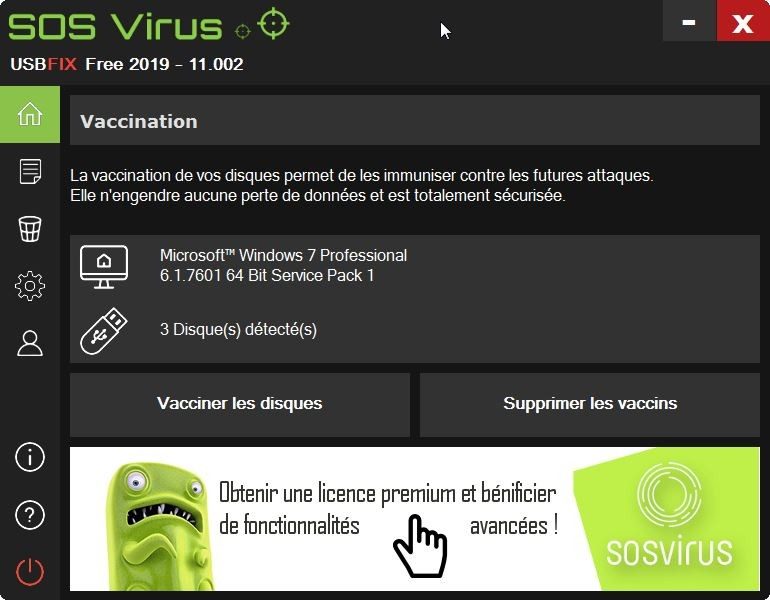
Running USBFix on Windows
Getting USBFix onto a PC doesn’t require a degree in computer science. You download the installer. You run it. You click through the prompts. It’s designed for everyone, even those who panic at the sight of a command line. The interface is straightforward. You get a quick scan option and a deep scan mode. Use the quick one for a routine check. Pick deep scan if you suspect something nasty is hiding in the shadows.
During the scan, the tool doesn’t just work in silence. It logs everything. Every anomaly. Every threat. Every suspicious file gets a detailed entry in a final report. You can review this report. If the software flagged a legitimate file by mistake, you can restore it. This transparency is key. You’re not just blindly clicking “delete.” You’re managing what happens to your data.
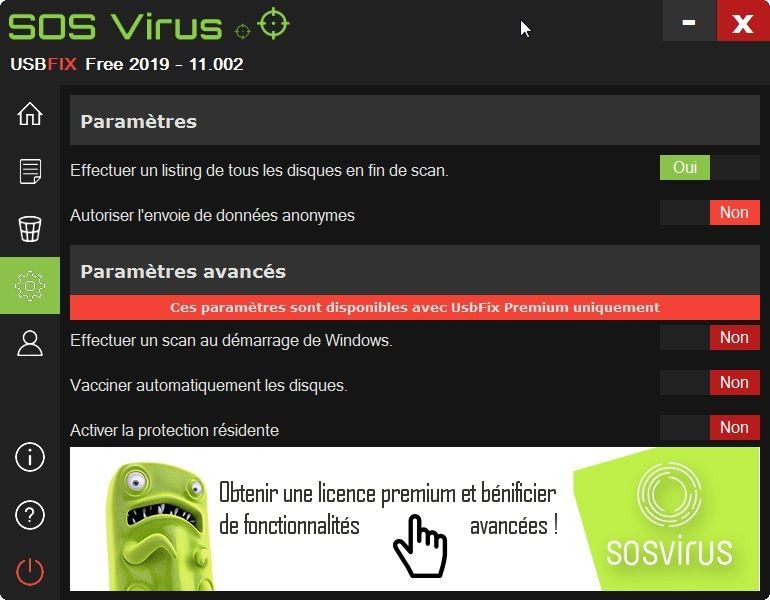
Beyond detection, USBFix handles file system maintenance. Infections often corrupt directory access or hide files deep in the system. This tool helps repair that damage. You can also schedule regular scans for removable devices. Think of it as setting a security perimeter around your USB drives. For power users, network admins, or IT technicians managing multiple workstations, the tool generates detailed reports. These logs are useful for auditing or proving compliance.
Version Control and Security
Software doesn’t stay still. USBFix updates regularly. Why? Because threats evolve. The signature database expands daily to catch new variants. Older versions lack this context. They are blind to fresh attacks.
Some users look for older versions on third-party sites. Don’t do this. It’s a security risk. An outdated version means outdated protection. Always stick to the latest release. You can force an update through the software’s internal options. Or manually download the newest version from a trusted source. The goal is simple: ensure you have the most current defense mechanisms available.
Licensing, Competitors, and Support
USBFix is free for personal use. That’s a major selling point. It removes the financial barrier for individuals who want to protect their external drives. There’s no upfront cost. No subscription fee for the basic experience.
Paid versions exist. They usually include advanced features or priority support. Prices vary. Check the official site or authorized partners for current rates. There are no student discounts currently offered. No official certification exists to validate your mastery of the software. You use it because it works, not for the credential.
The market is crowded. Malwarebytes and MCShield are direct competitors. Both detect and eradicate USB threats. But USBFix has a niche. It focuses heavily on disinfection and repair of removable media. If you swap drives frequently between untrusted computers, this specialized focus makes it a preferred choice over general-purpose antivirus suites.
Community support is robust. Forums are active. Users share tips. Advanced usage tutorials circulate. If you hit a wall, official technical support is available for installation issues or functional doubts. The FAQ and online guides are thorough. They help you optimize the configuration for your specific needs. Whether you’re a home user or an IT pro, the resources are there to help you integrate the tool into your security routine. The information is accessible. The learning curve is low. The protection is real.
What USBFix Actually Handles
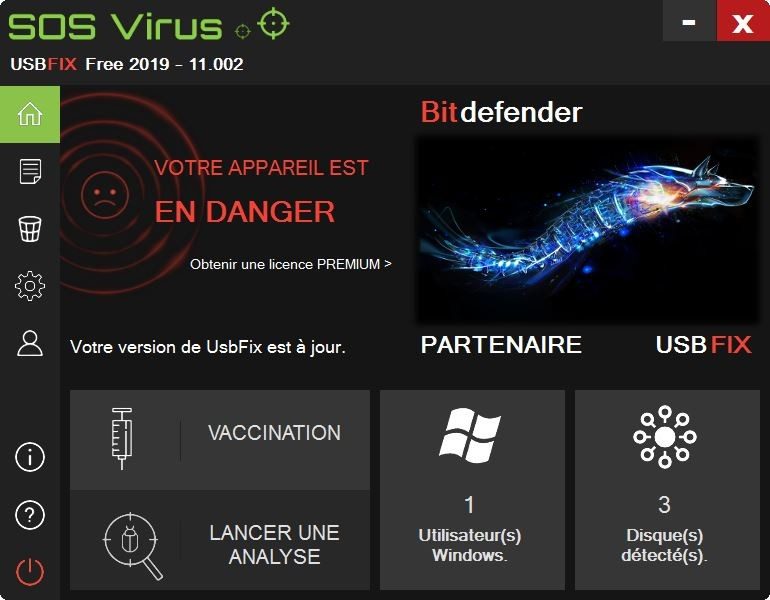
You are not looking for a full-blown antivirus suite here. You need a specialist. USBFix targets one specific vector: removable media. If your external hard drive or USB stick is acting up, this is the tool. It strips away the bloat. No background processes eating RAM. No complex policy configurations to memorize. Just detection and cleanup.
The scope is tight but deep. It covers Windows XP through Windows 11. That is a wide spread of legacy and modern systems. Both 32-bit and 64-bit architectures are supported. You do not need to hunt for a separate version. The interface is straightforward. It generates reports you can actually read. Not just code dumps. Actionable logs.
Who Built It and Why It Matters
The editor behind this utility is SOSVirus. They specialize in these niche security threats. The license structure is simple. It is free for personal use. If you are a business or need advanced features, there are pro editions. But for most home users, the free tier is sufficient.
This categorizes it clearly under security tools. Specifically within the anti-malware sector for USB and external storage. It is not a resident shield. It does not sit in your system tray waiting to pounce. It is on-demand. You run it. It scans. It fixes. Then you close it.
System Requirements and Installation
The installer is modest in size. Just a few megabytes. Depending on the build version, it might fluctuate slightly, but it remains lightweight. You download an EXE file. Standard Windows installer. No bundling with other junkware if you download from the right place.
Minimum configuration is basic. A standard PC. You do not need a server-grade machine. However, you need administrator rights. Recommended, yes. Required? Mostly. To restore hidden folders and remove stubborn registry keys, you need those elevated privileges.
The tool works locally. It does not require a constant network connection to function. You can scan an infected drive in an airport with no Wi-Fi. The logic is contained within the executable and the local database.
Updates and Connectivity
Why does it need internet then? For signatures. The virus definitions and application components are updated regularly. Without these updates, you are fighting yesterday’s war. The tool pulls the latest data to recognize new threats. A connection is recommended. Not mandatory for the core scan engine. But essential for effectiveness.
Language support includes French and English. Multilingual options vary by version. If you need another language, check the specific build details. The interface adapts to the locale settings of your OS.
Which Devices Does It Target?
Focus on the hardware. USB keys. External hard drives. Memory cards via card readers. If it plugs into a USB port, USBFix sees it. It looks for autorun.inf files. Hidden partitions. Malicious shortcuts. Folders that should be visible but are masked by infection.
The tool restores visibility. It undoes the hiding tricks malware uses to hide its tracks. You get your files back. Your folders appear. The drive is clean.
Downloading Safely
Where you get it matters. Malware often disguises itself as cleaning tools. Only download from the official SOSVirus site. Verify the compatibility. Check your Windows version. 64-bit systems need the 64-bit build for optimal performance. 32-bit systems need the corresponding version. Mixing them up can cause errors.
Once installed, the process is manual. You do not set it and forget it. You run it when you suspect an issue. Or as a periodic check if you swap drives frequently. The log file
Why legacy protocols still haunt your network
You think you’ve secured the perimeter. You’ve got the firewalls. The intrusion detection systems are humming. But then you see it. A packet. Ancient. Unencrypted. Hoping no one is listening. This isn’t paranoia. It’s the reality of internet infrastructure. Some services just refuse to die.
Why does this matter to you? Because if your data travels over them, it’s readable. Not just by hackers. By anyone with a sniffer. We need to look at the ones that linger. The ones that shouldn’t be there. But are.
Telnet: The ghost in the machine
Telnet. Port 23. It sounds like a relic. And it is. But legacy systems? They love it. Manufacturing plants. Old routers. Devices that haven’t been patched since the Clinton administration.
Here’s the trap. Telnet sends everything in plain text. Username. Password. Every command you type. It’s like shouting your credit card number across a crowded room.
“If you are still using Telnet, you are not secure. You are merely waiting for an exploit.”
It’s not just about old servers. It’s about the habit. Engineers love it. It’s simple. It connects. But it reveals everything. There are no encryption layers. No handshake that verifies identity. Just a direct line. And that line is exposed.
FTP and the unencrypted transfer
File Transfer Protocol. It sounds standard. And for decades, it was. But it sends credentials in clear text. Just like Telnet.
When you upload a file using basic FTP, you’re broadcasting your login details. Any intermediate server can see them. Your ISP can see them. The person sitting in the coffee shop next to you with a laptop can see them.
There are alternatives. SFTP. FTPS. They wrap the data in SSL/TLS. They encrypt the transfer. But why don’t people use them? Because configuration is harder. Because legacy software doesn’t support them. Because it’s easier to leave the door unlocked.
HTTP vs. HTTPS: The silent default
This one’s everywhere. HTTP. Hyper Text Transfer Protocol. It’s the foundation of the web. And it’s broken. It’s been broken for years. But we still use it.
When you visit an HTTP site, your data is plain text. Search queries. Form inputs. Cookies. Everything. HTTPS adds the TLS layer. It encrypts the connection. It verifies the server.
Why does this affect you? Because HTTP sites are flagged. Browsers mark them as “Not Secure.” If you’re entering data on an HTTP page, you’re trusting a public network completely. And you shouldn’t.
The shift to HTTPS is forced by Google’s ranking algorithm. It’s also forced by user expectation. But legacy intranets? Internal tools? They still run on HTTP. Why? Because SSL certificates cost money. Or because the developer didn’t bother. Either way, your session is exposed.
The human factor: Why we keep these open
It’s not always technical debt. Sometimes it’s laziness. Sometimes it’s fear. Fear of breaking a system that works. Fear of spending hours configuring TLS.
We prioritize function over security. Until the function fails. Then we scramble.
What you can do today
You can’t