



The term “microcomputer” basically just means a personal computer. It’s a device small enough to sit on your desk and tailored for a single user. Since the 1990s, these devices have evolved from niche hobbyist projects to household staples. Today, desktops, mini-PCs and laptops fall under this term. In France alone, 76% of those aged 12 and over own one.
Why the desk is still important
When people talk about a “permanent computer” they usually mean a desktop. This label is specifically used to distinguish desktop computers from laptops. A traditional desktop may not fit in a backpack. It’s too heavy. It’s too big.
A standard desktop installation usually includes:
– Central unit (tower or box). These cases are getting smaller every year.
– Separate keyboard.
– Monitor.
– A mouse.
– External speakers.
– Microphone.
The tower itself has changed. Early models were huge. Modern devices are compact, but the core concept remains: it stays put.
The Rise of the Mini PC
Mini PCs are becoming more and more popular. Imagine a small black box. It is about 20 cm wide, 10-20 cm long and only 3-5 cm thick. Despite their small footprint, they are very practical.
Their low power consumption makes them ideal for home automation and passive houses.
You usually buy a device without a keyboard or screen. This modularity is a feature, not a bug. This allows you to install the box behind the TV or store it in a cabinet. Energy efficiency is an important selling point. They use very little electricity. This makes them perfect for always-on tasks such as smart home hubs or lightweight media servers.
Ease of use of laptops
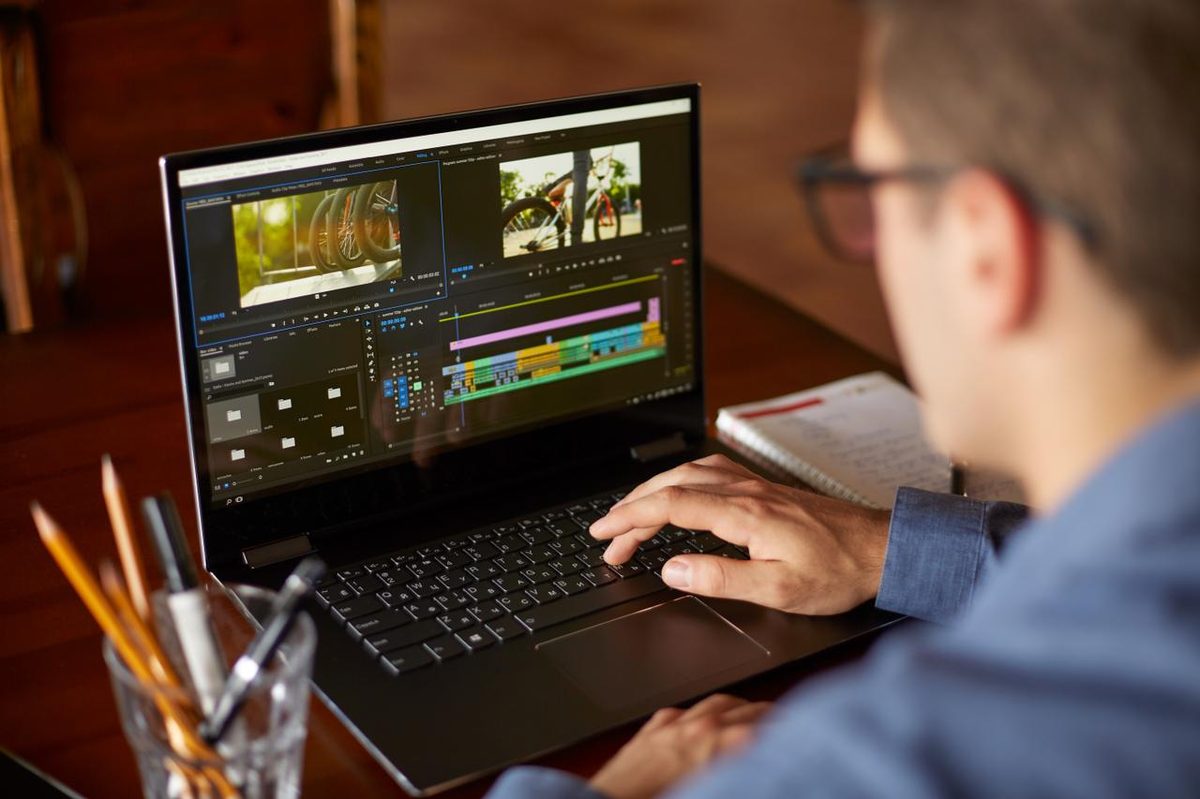
Portable computers are characterized by mobility. They pack everything you need into one folding device. The screen, keyboard, speakers and trackpad are all integrated. Most modern models also have a built-in microphone and webcam.
Because of this integration, they dominate remote work. No need to search for peripherals. You open the lid and it works. The downside is that you’re limited by the battery and fixed form factor. It’s not easy to update the graphics card or replace the screen when it breaks. But for general use? They are the default choice.
Dust treatment: DIY vs. professional help
Turn your computer into a sanctuary so you can dust bunnies and get on with your daily life. Alternatively, you can have it professionally removed. Sure, the DIY route is cheaper, but ignoring the basics is a big risk.
Start with the right gear. You need a screwdriver, specifically a pentalobe driver that fits most laptops. A can of compressed air are not negotiable. Then grab a microfiber cloth. This is the Holy Trinity. Turn off the machine before touching anything. Unplug. Power is the Enemy here.
If it’s a desktop computer, crack the case. Dust filters are usually located at the front or bottom. Pull it out. You can remove the bulk of the grit with a small vacuum cleaner before you even think about air. Then hit the internals with the compressed air. Don’t hold the can upside down. Keep the nozzle away from delicate components. In laptops, that little straw attachment on the air can is your best friend. Directs the airflow directly to the fan blades without the fan blades spinning too fast and causing reverse voltage.
Then move to the exterior.
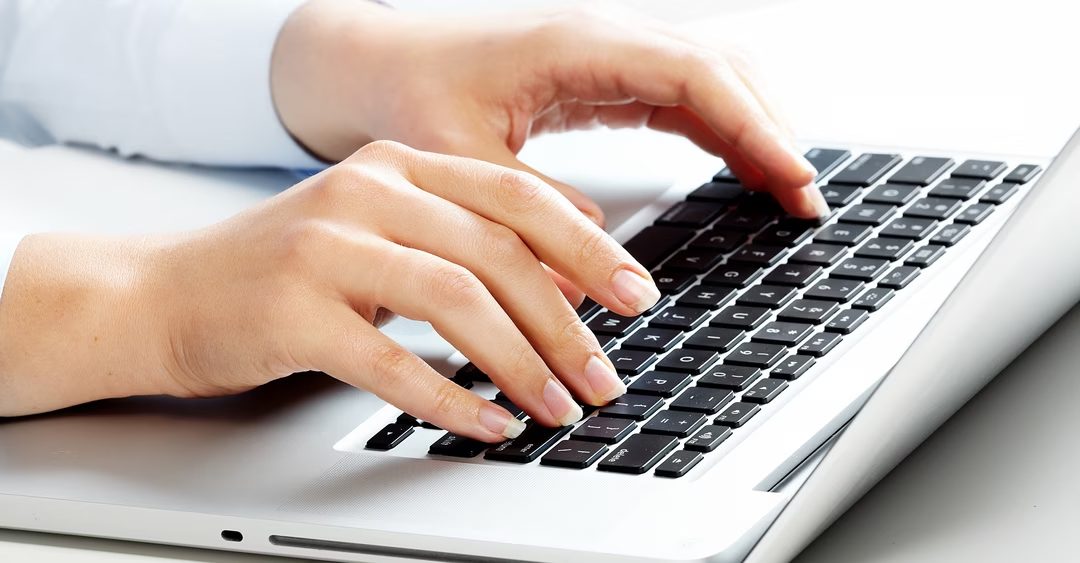
Keyboard
Turn it over. Tap it gently. Let gravity do the heavy lifting. If debris is still stuck, use a microfiber cloth lightly moistened with water. Do not spray directly on the keys. Wipe gently.
The Screen
This is where people mess up. Never use window cleaners. Never use acetone. Those chemicals strip the anti-glare coating. Start with a dry microfiber cloth. If that doesn’t work, use a spray specifically designed for screens. Ask the staff of the electronics store for a suitable solution. Don’t guess.
Mouse
Whether you have an old-fashioned mechanical ball mouse or a modern optical sensor, a cloth moistened with a little isopropyl alcohol will do wonders. It cuts through the oils from your fingers without leaving residue.
Inside the black box
People see the shell. They rarely think about what’s holding it together.
Every microcomputer, from towers to thin-and-light laptop, relies on a motherboard. It is the central nervous system. The most important components that make the machine work are installed on it.
Processor (CPU)
This is the brain. It executes instructions. Without it, the machine is just plastic and silicon.
RAM (Random Access Memory)
They hold active data. When you close a program, RAM clears. Quick access, temporary storage.
The Graphics Card (GPU)
Even integrated graphics are technically a card or a component on the motherboard. Convert the data to The Screen on the screen.
Storage drive (HDD or SSD)
The file will be placed here. The data is preserved even if the power is turned off. Hard drives use spinning disks. SSDs use persistence. Both have a common goal: perseverance.
Port entrance
These are bridges between the inside and the outside.
VGA terminal? This is for connecting the old screen. This is analog and outdated, but still exists in legacy settings. Ita Network Terminal Port? This is a connection to a local network. There are also USB ports, HDMI, Thunderbolt and more. Each determines how you use the device.