




The days of searching for a signal in an airport lounge or praying for a reliable connection in a coffee shop are practically over. Standardized by 802.11, wireless Internet has gone from a narrow enterprise infrastructure to the mainstream of home life. It is now as common as electricity and is even used by local governments to provide public access to cities.
The appeal is simple. Wireless networks are cheap to install and require little physical space. Sometimes you get stuck in a hotspot and you don’t realize you’re connected to the radio frequency until the video buffer is empty. But what is beneath the surface? How does data travel through the air without a single cable?
The physical principle of invisible data
At its core, WiFi works by converting digital data into electromagnetic waves that travel through the air. The device’s antenna then receives these radio waves and decodes them into data that the processor can understand. The system uses certain frequency bands (mainly 2.4 GHz and 5 GHz) to carry this load.
In the past, setting up a home network required running an Ethernet cable through the wall. Now you need to connect to the router and wait for the signal. This technology automatically handles the switching between the laptop and the Internet gateway. We want frictionless connections.
为什么现在很重要
从有线到无线的转变不仅仅是为了方便。 它引发了移动革命。 智能手机、平板电脑和物联网设备都依赖于该基础设施。 如果没有 802.11,现代应用程序经济就会崩溃。 如果没有前端无线链路,就没有流媒体服务的后端。
了解这一点有助于解释为什么存在盲区。 墙壁,尤其是混凝土或砖砌的墙壁,会吸收这些频率。 信号随着距离的增加而减弱。 这就是网状网络受到关注的原因。 他们创建了一个覆盖网络,而不是依赖于单个起点。
Build your own infrastructure
Building a wireless network at home requires more than just buying a router. You need to consider placement. Centralizing the device minimizes obstruction. You also need to choose the right frequency range. The 2.4 GHz band has a longer range, but is more sensitive to microwave and neighbor interference. The 5 GHz frequency is faster, but its range is shorter.
Security is the second layer. Older encryption standards like WEP are broken. To protect your data, you need the latest WPA3 encryption. The hardware must support these protocols. Many older routers cannot be updated to meet current security standards, putting users at risk.
Technology is constantly developing. New standards such as WiFi 6 (802.11ax) can handle multiple devices better. Reduce delays in congested environments. This is important if everyone in your home is streaming, gaming or video calling at the same time. Networks must prioritize traffic efficiently.
We are still in the early stages of wireless dominance. The infrastructure is only getting denser. The number of small cells increases in urban areas. Satellite and fixed wireless connection is gradually increasing in rural areas. The gap is narrowing, but it is not yet closed.
The next question is how does this affect your daily life? Does the convenience outweigh the security risks? Are we giving up too much privacy to check email on the couch? This trade-off is real. The technology works, but its effects are still felt.
Wireless internet is not magic. It’s a radio wave. Just like a car radio or cell phone signal, WiFi uses electromagnetic frequencies to transmit data. The difference is in the protocol and frequency range. When you connect your laptop to your router, you’re essentially setting up a two-way wireless link.
This is how links work. The wireless adapter of your device receives the digital data (1s and 0s) and converts it into a radio signal. This signal is transmitted through an antenna. The router catches it. The router decodes the signal, converts it to digital data, and sends it to the global Internet via physical Ethernet cables. For incoming traffic, the process is reversed. The router takes data from the network, modulates it into a radio wave and sends it back to your device.
The hardware inside a laptop or router works like a walkie-talkie or a cell phone. However, WiFi radios operate at a higher frequency. The technical details may be of interest to anyone trying to understand how WiFi works in a crowded home.
Fight between 2.4 GHz and 5 GHz
WiFi radios primarily transmit in two frequency bands: 2.4 GHz and 5 GHz. The higher the frequency, the more data can be transferred. This is basic physics. The higher the frequency, the wider the “channel” for data traffic.
For many years, the default frequency was 2.4 GHz. It’s slow. It’s also old. But it has one big advantage: range. The lower the frequency, the better it penetrates walls, floors and furniture. In large homes with thick concrete walls, 5 GHz signals can be lost in hallways. 2.4 GHz signals can reach your bedroom.
- 2.4 GHz Band : Currently considered an old band due to speed limitations. Supports older devices and provides better coverage. The actual speed drops significantly when you move away from the router, but the connection remains stable.
- 5 GHz Band : the latest high-speed internet standard. Provides faster data transfer speeds. However, you will be fighting physical obstacles. Under ideal conditions, the range is about 200 feet (61 meters). In a real apartment with plasterboard and doors, this area is significantly smaller.
Which band should you use? 5GHz is faster if you sit next to the router. If you’re in the next room or two rooms away, 2.4GHz can actually provide a more stable connection, even at lower peak speeds.
Evolution of the 802.11 standard
WiFi complies with the IEEE 802.11 standard. These techniques have been developed over decades, improving speed and efficiency with each iteration. Understanding these differences helps explain why older phones can’t handle modern streaming.
802.11b (1999)
The first widely accepted standard. Only works on 2.4 GHz. It uses a modulation technique called complementary code keying (CCK). Maximum theoretical speed: 11 Mbps. It’s cheap and slow. Some traditional IoT devices still rely on it, but most are now obsolete.
802.11a (1999)
Although introduced at the same time as 802.11b, it was initially absent from the consumer market. Works at 5 GHz frequency. It uses orthogonal frequency division multiplexing (OFDM), a more efficient coding method that divides the signal into sub-signals to reduce interference. Maximum speed: 54 Mbps.
802.11g (2003)
A hybrid. It uses the same 2.4 GHz frequency as 802.11b, but uses the faster OFDM coding of 802.11a. Maximum speed: 54 Mbps. Backwards compatible with 802.11b. This became the norm in most homes in the mid-2000s.
802.11n (2009)
A big leap forward. Also known as WiFi 4. Works at 2.4 GHz and 5 GHz. MIMO (multiple input, multiple output) was introduced, which allows routers to transmit multiple data streams simultaneously using multiple antennas. 802.11g can theoretically reach 54 Mbps, but actual speeds are typically around 24 Mbps due to congestion. 802.11n can actually reach 140 Mbps. Most routers support two or three streams, but the standard allows up to four streams.
802.11ac (2014)
It is called WiFi 5. More precisely, it is moved to the 5 GHz frequency range. Backward compatible with 802.11n in the 2.4 GHz band. This standard significantly reduces interference and increases speed. Maximum speed of one stream: 450 Mbps. High-end routers support up to 8 spatial streams. It is sometimes called “Gigabit WiFi” because multiple streams can exceed 1 Gbps. Some users confuse this with 5G in mobile phones, but they are not related.
802.11ax (2019)
Wi-Fi 6. This standard extends the capabilities of 802.11ac. OFDMA was introduced to allow multiple devices to share channels more efficiently. Maximum theoretical speed: 9.2 Gbps. Better able to handle dense environments (like apartments). Some routers also support the new 6 GHz band. This band is faster and less congested than 5 GHz, but has a shorter range.
802.11be (2024)
Wi-Fi 7. The current cutting edge. It offers a wider range, more connections and faster data transfer speeds than WiFi 6. Designed for applications that require very high bandwidth, such as 8K video streaming and low-latency gaming.
Interference and frequency hopping
WiFi radios are not limited to one frequency. You can quickly “jump” between bands and channels. This technology helps avoid interference from nearby networks, microwaves, and Bluetooth devices. By hopping between frequencies, routers avoid packets getting stuck in congested channels.
This is why multiple devices can share a router. Each device has its own wireless adapter. They all talk to the same router that controls the traffic. Easy to connect. It is invisible. But it’s easy to break.
If the router goes down, everyone goes offline. If too many people start streaming 4K video or downloading large files at the same time, bandwidth can become saturated. You may experience delays or disconnections. New standards like 802.11ax mitigate this problem by managing traffic more intelligently, but the physical conditions still apply. You cannot push more data than the pipeline allows.
Next, we’ll look at how to connect to the Internet from a WiFi hotspot.
We’ve all heard the saying that Wi-Fi stands for “Wireless Fidelity”. Makes sense to me, right? Like Bluetooth or HTTP. But this is a marketing invention, not a technical fact. The term was coined by a branding company and sounds like an acronym for high technology. As for the sound or signal quality, it doesn’t affect the accuracy at all.
Its true origins are more bureaucratic. Wi-Fi is basically a catchy nickname for the 802.11 family of standards. These aren’t just random letters and numbers. These are the basic rules that will allow your laptop to communicate with your router without a single cable.
The IEEE and the Numbering System
To understand where Wi-Fi came from, you need to refer to the Institute of Electrical and Electronics Engineers (IEEE). This organization is the world’s leading setter of technical standards for electrical and electronic engineering. They don’t just guess how things should work. They create precise documentation that defines exactly how devices communicate.
The IEEE uses a special numbering system to classify these protocols. The “802” part of the name refers to a working group established in 1980 that develops standards for local area networks (LANs) and metropolitan area networks (MANs).
In this group, 802.11 is a special standard for wireless local area networks. This is the core technology that makes Wi-Fi possible. Other 802 standards perform different functions. For example, 802.3 covers Ethernet (wired cable) and 802.15 covers wireless personal networks such as Bluetooth.
Why the difference is important
Confusing Wi-Fi with “wireless fidelity” might seem harmless. But it obscures the actual engineering behind your connection. When the phone connects to a hotspot, the “accuracy” meter is ignored. The 802.11 protocol is used to negotiate with the router.
This protocol defines everything from the radio frequencies used to data encryption. It ensures that your device from Brand A can connect to a router from Brand B. This interoperability is the result of strict IEEE standardization, not marketing synergy.
The Evolution of 802.11
802.11 The standard has developed significantly over the past decades. Each new version increases speed, increases range and uses the radio frequency more efficiently.
- 802.11b : The first widely accepted standard, released in 1999. Although slow by today’s standards, it was revolutionary at the time.
- 802.11a/g : These versions offer higher speeds and better interference handling mainly in the 5 GHz band.
- **802.11n (Wi-Fi
4): This is a significant step forward and introduces MIMO (Multiple Input, Multiple Output) technology, which enables simultaneous data streams.
* 802.11ac (Wi-Fi 5): This standard is specifically targeted at the 5GHz band and significantly increases performance for high-bandwidth tasks such as 4K streaming.
802

A WiFi hotspot is simply a physical place where you can use a wireless LAN. This term is often used to describe public areas such as airport terminals, coffee shops and libraries. Some of these spots are free. Others charge a fee. Anyway, the problem of not being able to connect to the network while outside is solved. You can also create your own hotspots. You can use it on any smartphone with a data connection. The same goes for dedicated mobile hotspot devices that connect to a cell tower. Of course, most people just set up their home WiFi through their ISP.
To use these networks, your hardware must support them. Most modern laptops have a built-in transmitter. Desktops might need help. If your device is older or lacks built-in wireless capabilities, you can purchase an adapter. There is also a USB version that plugs into the side. There is also a PCI card inside the case. Many of these adapters support multiple 802.11 standards. This means you don’t have to use just one old version of technology.
After connecting the adapter and installing the driver, your computer will automatically detect your network. Turn on the laptop in a coffee shop. A notification will appear. Available networks are listed. You will be asked if you want to join. If you are using older hardware, you may need additional software to search for signals and connect. Older devices are not always plug-and-play.
Public wireless LAN is very convenient. A shared connection is no longer needed. Home networks have similar benefits. Move your laptop, tablet or phone around the house without having to hunt for cables. They all talk to the same router. Life becomes simpler.
构建无线网络
如果您厌倦了寻找公共信号,那么在家中设置无线网络是下一个合理的步骤。 设置需要花钱。 从长远来看,它可以节省时间。 您获得隐私。 你获得速度。 而且您不必担心陌生人使用您的带宽。
路由器与接入点:您真正需要哪一个?
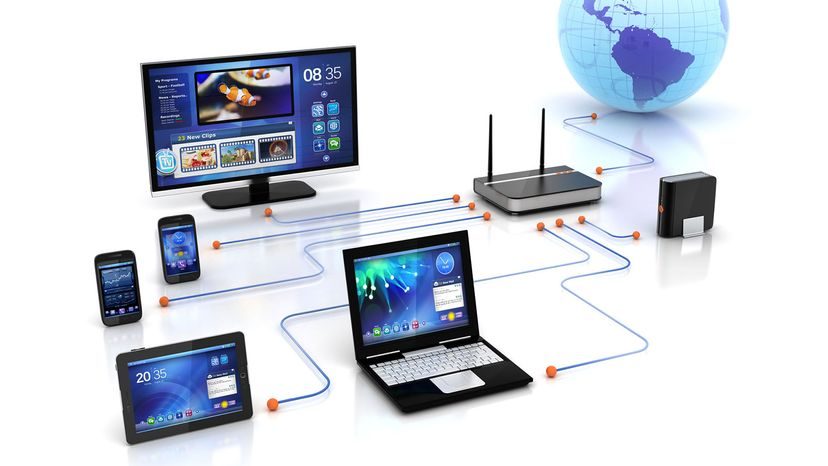
如果您的家已经有有线主干网,那么添加无线接入点是合乎逻辑的举措。 它在不扰乱现有基础设施的情况下扩展了 Wi-Fi。 但如果您从零开始,或者您想完全放弃以太网电缆,则需要一个无线路由器。 这不仅仅是一台无线电台。 它是一个功能强大的盒子:调制解调器端口、路由器(大脑)、以太网集线器、防火墙和无线接入点本身。
一台设备。 所有功能。
无线路由器可让您的手机、笔记本电脑和打印机相互通信并与互联网通信。 无论您使用 Wi-Fi 信号还是老式电缆,它都能处理流量。 信号覆盖范围通常为各个方向约 100 英尺。 这听起来很慷慨,直到你记得墙壁和门。 厚混凝土? 砖墙? 它们的作用就像信号接收器。 如果您的房子很大,廉价的范围扩展器可以帮助缩小差距,尽管它们通常会使您的带宽减半。
选择合适的 802.11 标准
通常、ルーターは複数の 802.11 標準をサポートします。 802.11n、802.11ac、および新しい 802.11ax (Wi-Fi 6) が表示されます。 802.11n は古くて安価です。 速度も遅くなります。 速度が必要な場合は、802.11ac または ax を探してください。 価格の差はわずかですが、4K やゲームをプレイする場合は、パフォーマンスの違いが重要になります。
配置您的网络
Just plug it in. Ready to use right out of the box. However, the default setting is 懒惰的. To edit these, you must log in to the web interface.
What do you change?
**SSID. ** This is the network name. By default, it often screams, “I bought this router at Target.” Please change.
** channel. **The router uses channel 6 by default. In an apartment building, everyone chooses channel 6. The neighbor’s Netflix may interfere with your Zoom call. Switching to a less crowded channel will reduce the noise.
**安全性。 ** This is not negotiable. Open networks invite 陌生人. You want to get rid of them.
Wi-Fi 安全性的演变
Security is not static. This is an arms race.
Wired Equivalent Privacy (WEP) was the first major attempt to make a Wi-Fi network as secure as a wired LAN. 它失败了。 Hackers quickly found holes in the encryption. There are tools available that can crack WEP encryption in minutes. Do not use.
WPA (WiFi Protected Access) tries to modify WEP by using TKIP encryption. Better? Yes. 安全吗?并不。 That’s dead too.
那么您应该使用什么?
WPA2. This is the current standard. Uses strong AES encryption. Log in with your password. 推荐使用。 However, WPA2 also has its shortcomings. Public access points may still use older protocols. Be careful when connecting while 在家外.
Also turn off WiFi Protected Setup (WPS). Its purpose is to facilitate connections with a PIN code. 黑客发现 this PIN is easier to crack than your actual password. Disable WPS if your router allows it.
WPA3 and the future
WPA3 was introduced in 2018 and will become a standard in 2020. Why is it important? It uses complex encryption on both the router and client side. Keys change over time. Once a hacker steals your key, it cannot be used the next time. It also protects client-side encryption on open networks. It’s improved, but not perfect.
没有无线网络是无法破解的。 If you are handling 高度机密的政府数据, use a cable. Using a Wi-Fi connection requires an attacker to be nearby. For home users, the risk is lower, but the vulnerability is real.
MAC address filtering
You can also filter by Media Access Control (MAC) address. Each network card has a unique hardware ID. Only approved MACs can be whitelisted. No ID? No internet.
Make it easy for 陌生人 to leave. But it’s not foolproof. Hackers can spoof MAC addresses. They copy 受信任的 ID and 轻松进入. This is a protective layer, not a wall.
最终安全调整
Don’t stop at just passwords.
Block WAN requests. Prevent the router from responding to the outside world. Limit the number of devices that can connect. Disable remote management so that only devices directly connected to the router can change settings.
Change the SSID. Make it generic. Don’t give hackers hints about your router’s model. Choose a strong password. 不要使用您宠物的名字。 It is not “password123”.
The rest is up to them. And you too.
You don’t need a computer science degree to set up a home network. Most modern wireless routers have an intuitive web interface that anyone can easily use. The equipment is cheap and quick to put into use, so all devices in the home are immediately connected to each other. There are many resources available to help you better understand how your home network works, but the core concepts boil down to a few basic questions.
Learn more about wireless routers
Basically, a wireless router is the distribution center for your Internet connection. It does not produce a signal itself. That job belongs to the modem. The modem acts as a gateway and brings your Internet service provider’s signal to your home via cable.
The router then receives the incoming signal and transmits it wirelessly using the built-in antenna. This creates a local WiFi network that allows your smartphones, laptops and smart TVs to connect to each other and access the wider internet. Without a router, the modem’s signal remains in one wired connection.
WiFi speed testing
If your connection seems slow, don’t just guess. Use a speed testing tool like the Google WiFi app or a trusted third-party speed testing site. The process is simple. Run the test on the specific device being evaluated.
It is important to remember that not all devices work the same way. The speeds shown on a laptop can differ significantly from the speeds on a tablet or mobile phone. Each device has its own wireless chip and antenna quality, so testing each device will give you a more accurate picture of how your network performs on different devices.
Comparison of Google Nest WiFi and Google WiFi
When comparing Google’s mesh systems, the difference is in performance and design. Google Nest WiFi is a more efficient option. It offers faster data transfer speeds and can handle multiple connected devices simultaneously without causing congestion.
Coverage is also a key differentiating factor. Nest WiFi offers better coverage and is suitable for large homes or spaces with many obstacles. Visually, it departs from the traditional router aesthetics and choose an elegant dome-shaped design that blends more quietly into your living space. The original Google WiFi is still a good option for small apartments, but if you need more power and coverage, the Nest system is an upgrade.
Protect your network from hackers
Is WiFi secure? Not necessarily. Competent hackers can and do break into unprotected wireless connections. The first line of defense is to change the default service set identifier (SSID). This is the network name. Leaving it at the manufacturer’s default settings makes it an easy target for automated attacks and random snooping.
In addition to renaming the network, you also need to configure your router to block WAN requests. This setting prevents the router from responding to IP requests from remote Internet users. Closing this door greatly reduces the attack surface. A secure network requires basic hygiene steps: unique names, strong passwords, and disabling remote access functions.
The technology is simple. The threats are real. You can keep your network tight by changing a few settings. What other problems can I face if I leave the default settings? Probably not that many, but “probably” not enough for safety.
Handling with nuances
The basics have been covered. Now things get messy. This is where the rubber meets the road. Not all implementations are equal. You may find yourself staring at a discrepancy between the documentation and reality. This is normal.
Consider recent updates from your cloud infrastructure provider. They changed API rate limits overnight. Users who do not read the fine print will see a 429 error. This is a painful lesson in assuming stability. The system was working fine until something failed.
Why Details Matter
小的变化会级联起来。 单个错误配置的标头可能会破坏数千名用户的身份验证流程。 这就是为什么阅读变更日志不是可选的。 这是一种生存技能。
看看向无服务器架构的转变。 每个人都喜欢无限规模的承诺。 他们忘记了冷启动的惩罚。 您的函数可能会闲置几分钟。 然后突然,它醒了。 用户等待。 你会失去耐心。 循环重复。
Hidden costs
Abstraction costs. Save installation time. There is no way to know what is actually going on. Troubleshooting can be a guesswork process.
- Check the log. Often.
- Watch for latency spikes.
- Understand your service provider’s SLA.
If you skip these steps, you will be flying blind. The error message is vague. Support tickets cannot be answered. You have to put together a puzzle from the information.
Real-World Implications
以上个月发生的重大数据库中断为例。 这不是黑客攻击。 这是配置漂移。 设置文件中的一个键已更改。 复制滞后导致数据不一致。 用户看到过时的信息。 然后他们什么也没看到。
这不是一个孤立的事件。 发生这种情况是因为我们抽象了复杂性,直到我们不再理解它。 我们在沙子上建塔。 当潮水来临时,地基就会破裂。
教训很简单。 尊重细节。 阅读文档。 测试边缘情况。 技术很强大。 但它也很脆弱。 给予它应有的照顾。 或者不这样做。 选择权在你。 后果则不然。