


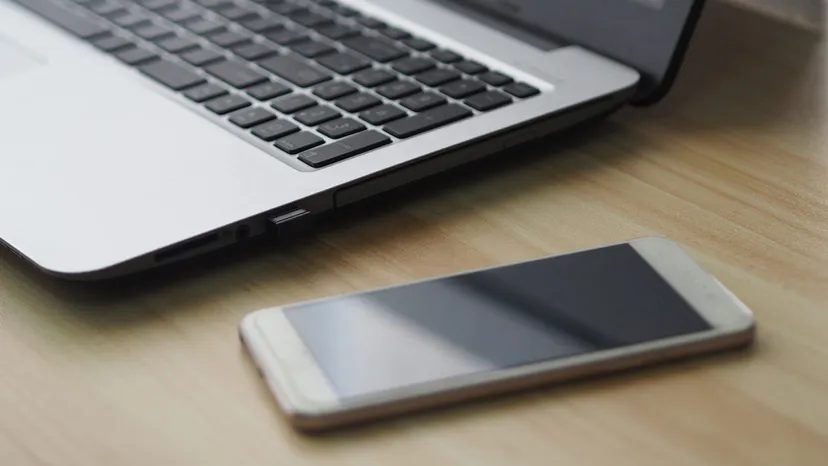
A computer is fundamentally an input-output machine. Your brain does this. Scientists are still mapping how it works. But when you say “computer,” you probably mean a box with a microprocessor.
Microprocessors are small. They process data instantly. You see them in cars. Fridges have them. TVs have them. The most famous user of this tech is the personal computer.
People often think PC means IBM or Microsoft. It’s broader than that. Here is what we mean by PC:
- One user at a time
- Runs an operating system (OS)
- Has a CPU and RAM
- Runs apps
- Allows hardware swaps
Early computers filled rooms. They had terminals. In the 1970s, Ed Roberts changed this. He sold kits based on an Intel chip. He called it the Altair 8800. Price: $395. Unassembled. Popular Electronics published it in January 1975. It sold out.
This was the start of the personal computer era.
The Altair 8800 was first. But the Apple II came later. It made PCs a home appliance. Steve Jobs and Steve Wozniak built it. Demand grew in homes and schools. IBM jumped in. Texas Instruments followed. Commodore and Atari arrived too.
We will now look inside. We will cover parts. We will look at software. We will discuss mobile PCs. And we will see where this technology goes next.
Core PC Components
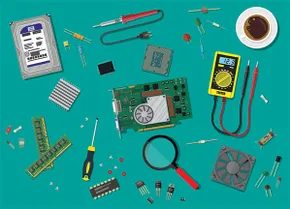

Let’s look under the hood. To understand how a PC functions, you have to start with the physical hardware. The specific combination of parts defines the machine. Here is how they fit together, typically in the order you’d assemble them.
The Case
If you are working with a laptop, the case is the entire chassis—keyboard, screen, and everything inside. For a desktop, it’s a box. You know the type. Lights, vents, cable ports. The size ranges from small tabletop units to massive towers.
Does a bigger case mean a more powerful computer? No. It’s what’s inside that counts.
PC builders pick a case based on the motherboard form factor. You need to know what fits.
The Motherboard
This is the primary circuit board. It is the backbone. Every component, internal and external, connects through it. Most parts are removable. You can swap them out without replacing the main board. But some things are attached directly.
Take the CMOS. It’s a microchip that stores system information like the clock when the power is off.
Motherboards come in standards. The most common ones right now are ATX and MicroATX. You also have E-ATX for power users. It offers more space for ports and expansion slots. But it demands a large case to accommodate the extra real estate.
The Power Supply
Except for the CMOS (which runs on a replaceable battery), everything else needs the power supply. It draws from a source. A battery for laptops. An outlet for desktops.
In a desktop, you see it mounted inside the case. A cable goes to the wall. Others go inside. Some connect to the motherboard. Others go to drives and fans. Without this, nothing turns on.
Central Processing Unit (CPU)
We call it the processor. It contains the microprocessor. This is the heart of the operation. Hardware and software performance both rely on it.
Intel and AMD dominate the market. Others exist, but these two are the big players.
Architectures matter. You have 32-bit and 64-bit systems. Certain software requires specific architecture. Modern CPUs usually have four or more cores. This allows them to handle multiple tasks simultaneously. Efficiency depends on this parallel processing.
Random-Access Memory (RAM)
Even the fastest processor needs a buffer. That is what RAM is. Think of it like a countertop for a cook. The ingredients and tools sit there until you need them.
A fast CPU needs ample RAM to be speedy. You cannot have one without the other if you want performance.
Each PC has a maximum RAM limit. Slots on the motherboard dictate the type. DDR4 is standard today. Some systems are upgrading to DDR5. It is newer and faster. But compatibility is key.
Drives
Drives store data when it is not in use. A hard drive or solid state drive holds the operating system and software. There is often room for more drives to expand storage.
Optical drives still exist for CDs, DVDs, and Blu-rays. But connection types have evolved. You have the older IDE standard and the newer SATA standard.
Laptops and mini PCs likely use compact NVME SSDs. These connect via M.2 connector pins directly to the motherboard. No cables needed.
Cooling Devices
Processing generates heat. The CPU and other components can only handle so much. If a PC is not cooled properly, it overheats. That causes costly damage to circuitry.
Fans are the most common solution. You also get a heat sink. It is a metallic block that covers the CPU. It draws heat away.
Serious users, like gamers, might invest in water-cooled systems. It handles intense cooling demands better than air alone.
Cables
All the components we listed are connected by cables. They carry data, power, or both.
Build quality matters here. Cables should fold neatly. They must not block airflow. If air cannot move, heat builds up. And we already know heat is bad.
A PC is rarely just these core components. Next, we look at the ports and peripherals that let you interact with the machine. And the expansion slots that allow you to add even more.
Ports, Peripherals and Expansion Slots

The CPU handles the heavy lifting of calculation. But a computer is useless if it can’t talk to humans or other machines. That’s where the supporting cast comes in. These components bridge the gap between raw processing power and your actual user experience.
Graphics Processing Units (GPUs) and Display Interfaces
Most modern setups rely on a dedicated GPU, even if the motherboard has on-board graphics. On-board solutions share system memory and lack the muscle for serious tasks. A discrete video card slides into an expansion slot. Older systems might use AGP, but today we look at PCI standards.
These cards don’t just plug in and hope for the best. They are huge. Why? They need their own video RAM and aggressive cooling fans. Without them, high-performance graphics would melt the case. The card takes the load off the CPU, handling complex visual data so the processor can focus on logic.
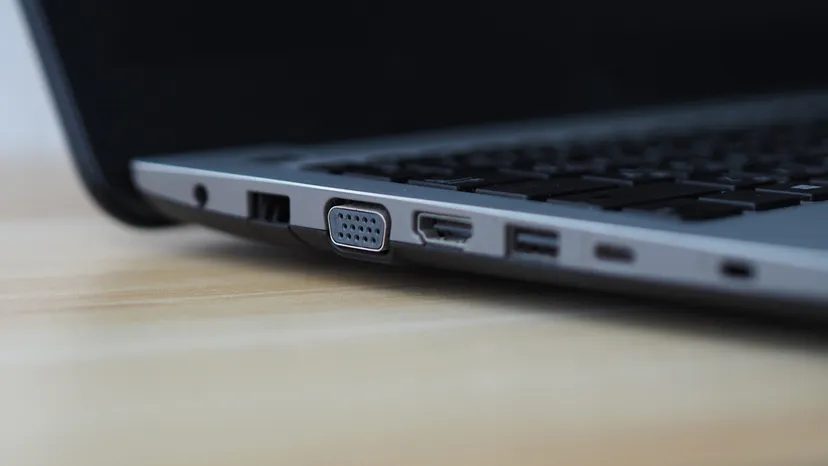
You connect your monitor through specific video ports. You might see a mix of:
– VGA (analog, old)
– DVI (digital, fading out)
– HDMI (ubiquitous)
– DisplayPort (preferred for high refresh rates)
HDMI and DisplayPort carry digital audio alongside video. One cable, two streams.
The Physical Ports on Your PC
A port is simply a physical socket on the chassis. It’s where you plug in a cable. Don’t confuse this with a software port, which is a logical endpoint for network communication. We’re talking about metal and plastic here.
These are usually hardwired to the motherboard. You’ll encounter them on the front or back panel. The standard lineup includes:
- USB ports : For almost everything that isn’t permanently fixed.
- Network ports : Typically Ethernet (RJ45) for wired internet.
- Video ports : As listed above.
- Audio ports : Mini analog jacks or optical SPDIF. Digital audio can also run through HDMI.
- Legacy ports : Parallel printer ports, PS/2 keyboard/mouse connectors. You’ll rarely see these on modern hardware, but they linger in enterprise environments.
If you’re building a PC, check the I/O shield. It’s the metal plate that holds these ports in place and prevents electromagnetic interference.
Defining PC Peripherals
Anything external to the case is a peripheral. It’s a broad term. It covers input devices, output devices, and storage.
Your monitor, keyboard, and mouse are peripherals. So are printers, speakers, headphones, microphones, webcams, and USB flash drives. If it plugs into a port, it’s a peripheral.
Laptops cheat this definition. They have monitors and keyboards built into the case. They aren’t “peripherals” in the traditional sense of being detachable add-ons. They are integrated components. On a desktop, those same items are separate entities connected by cables.
Expansion Slots and Add-in Cards
Sometimes the motherboard doesn’t have enough built-in connectivity. You need extra video cards. You need a network interface for a specific protocol. You want a TV tuner.
That’s where expansion slots come in.
These are long, narrow slots on the motherboard. You insert a card. The card is flat and rigid, hence the name. It slots into the motherboard and extends out of the case.
The type of slot matters. You can’t plug a PCI Express card into an older PCI slot. Compatibility is strict.
Current standards include:
* PCI Express (PCIe) : The dominant standard for GPUs and high-speed cards.
* M.2 : Used primarily for NVMe SSDs, but can support Wi-Fi and other cards.
* PCI-X : An older, wider slot found in servers.
* ISA/EISA : Ancient standards. Ignore these unless you’re repairing a machine from the 1990s.
Adding hardware via expansion slots is how you customize a PC. It transforms a generic box into a specialized tool.
Now that we have the hardware sorted, we can finally talk about what happens when you press the power button. The boot process is a chain reaction. It starts small and ends with a usable desktop.
When you press that power button, you aren’t just turning on a light switch. You’re triggering a cascade of hardware checks and software handoffs. The whole sequence is known as the boot process. Or just booting. It’s short for bootstrap, an old idiom meaning to pull yourself up from nothing.
The entire operation is directed by the basic input-output system (BIOS).
The Role of BIOS
Think of the BIOS as the PC’s first responder. It’s not a running application you interact with daily. It’s firmware embedded directly into a flash memory chip on the motherboard.
Manufacturers occasionally release updates. You can “flash the BIOS” with new software, though this is risky. One power outage during the write, and you’ve got a dead motherboard.
Beyond starting the machine, the BIOS handles basic hardware configuration. It tells the CPU how fast to run. It decides which drive to read first. You enter this configuration menu by hitting a specific key during startup—often Delete or F2. Look for a message like “Press DEL to enter Setup Menu.” If you miss it, you’ve missed it.
The Sequence of Booting
The steps are rigid. They happen every time.
- Power On. The supply sends current to the motherboard.
- POST (Power-On Self-Test). The BIOS runs a quick diagnostic. It checks RAM, CPU, and peripherals. A single beep means you’re good. Multiple beeps? Something is broken. Repair shops use beep codes like a Morse code chart to pinpoint failed components.
- Screen Output. The BIOS displays hardware details on your monitor. You’ll see the BIOS version, processor speed, RAM amount, and detected drives. Many modern PCs hide this behind a flashy manufacturer logo splash screen. You can disable the splash screen in settings to see the actual data.
- Boot Sector Access. The BIOS looks at the first sector of the designated boot drive. Usually, this is the hard drive or SSD holding your OS. You can change this drive order in the BIOS or by hitting a key during the splash screen.
- Loading the Boot Loader. The BIOS checks that sector. If it finds a bootstrap loader—a tiny program designed to find the OS—it loads it into RAM.
- Handoff. The BIOS steps aside. The boot loader takes over. It begins loading the core files of the operating system into memory.
- OS Control. Once the boot loader finishes, it yields control. The operating system takes the wheel. Now it’s ready for you.
What Comes Next?
The hardware is awake. The BIOS has done its job. But a PC is just a collection of silicon and copper until software gives it purpose.
How that software behaves depends entirely on the operating system you installed. Windows, macOS, Linux—they all handle the boot process slightly differently, but the underlying principle remains the same: initialize, check, load, handoff.
We’ve covered the hardware ignition. Next up, we need to look at the brain behind the brawn. How these operating systems actually manage resources, memory, and user input. That’s where the real complexity begins.
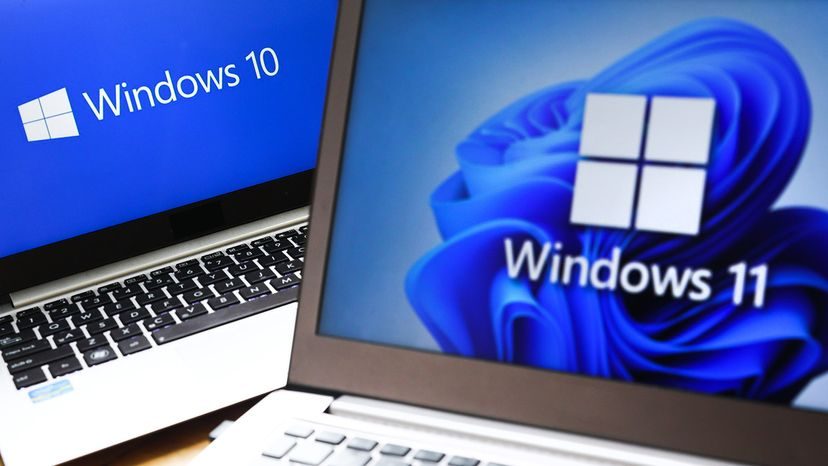
Once your PC boots up, the real work begins. The operating system, or OS, takes the wheel. For most non-Apple PCs, this means running Microsoft Windows or a Linux distribution. These systems are built to flex across various hardware configurations. Apple’s macOS, conversely, stays tightly coupled with its own hardware.
The OS isn’t just a background process. It handles six critical tasks that keep your machine from turning into a paperweight.
- Processor management : The OS chops up CPU work into manageable chunks. It prioritizes these tasks before handing them off to the processor. Your browser gets some cycles; your background update gets fewer.
- Memory management : RAM is finite. The OS coordinates data flow in and out of it. When RAM fills up, it moves data to virtual memory on your hard drive to keep things moving.
- Device management : This is the bridge. It provides a software interface for internal components and external devices. It translates your keyboard taps. It adjusts graphics to your screen’s resolution. It also manages network interfaces, meaning it controls your internet connection.
- Storage management : This directs where data lives permanently. Whether it’s an SSD, HDD, or USB drive, the OS handles creating, reading, editing, and deleting files.
- Application interface : Software needs a way to talk to the OS. An application must be programmed to work with this interface. You see this in requirements like “Windows 10 or later” or “64-bit only.” If the code doesn’t match the OS version, it won’t run.
- User interface (UI) : This is how you interact with the machine. Most of us use a graphical user interface (GUI). You click icons. You listen to audio cues. Apple popularized this shift away from text commands. Now, every major OS uses it.
The Future of PC Hardware
PC manufacturers have conquered portability. They’ve shrunk desktops into laptops and tablets. But the core technology inside keeps evolving. Older models become obsolete fast. SATA drives replaced IDE. PCI slots replaced ISA and EISA.
The main gauge of progress? The CPU. Specifically, the microprocessor.
Silicon chips have been the heart of computing since the 1950s. Manufacturers have been cramming more transistors onto these chips ever since. Gordon Moore predicted this doubling of complexity every two years in 1965. Industry experts call it Moore’s Law. For a while, it doubled every 18 months.
Many experts thought Moore’s Law was dead. Physical limitations of silicon seemed to be hitting a wall. But transistor counts keep rising. Chip makers found new ways to etch transistors. We are now measuring them in nanometers. One nanometer is one billionth of a meter. Atoms are about 0.5 nm wide. Smaller transistors mean more fit on a chip. More transistors mean more power.
In 2023, Intel launched its 13th generation Raptor Lake architecture. It uses transistors with 10 nanometers of thickness. IBM has gone further. They created prototype chips with two-nanometer transistors. That’s only four atoms across. Consumer versions are still years away.
What Comes After Silicon?
What happens when we hit the end of Moore’s Law? We need a new way to process data. Silicon microprocessors have relied on two-state transistors for 50 years. The successor might be quantum computing.
Quantum computers don’t stick to 1s and 0s. They use quantum bits, or qubits. A qubit can be 1, 0, or both simultaneously. This state is called superposition. Qubits act as both memory and microprocessor. Because they handle multiple states at once, they could be millions of times more powerful than today’s best supercomputers.
Current quantum machines look like giant golden towers. They look like intricate jewelry more than computers. They exist mostly in labs. But IBM maintains quantum machines accessible via the cloud. Universities and research firms use them to solve complex equations and run physics simulations.
Will this power ever reach your average PC? Time will tell. In the meantime, mobile PCs let you carry significant processing power wherever you go. We’ll look at that next.
The idea of a portable computer didn’t start with modern ultrabooks. Manufacturers were already sketching out concepts before the standard desktop PC even took off. But it took until 1986 for that vision to hit the market in a tangible way. The IBM PC Convertible weighed in at a hefty 12 pounds. It was the device that finally brought the laptop concept into production.
Since then, the shift has been relentless. These machines have shrunk in physical size while their processing power climbed to match their desktop counterparts. Today, the industry doesn’t just see one type of mobile device. It recognizes several distinct classes.
The Notebook vs. The Netbook
The term notebook computer has become almost interchangeable with “laptop.” Originally, however, it described a specific subset of devices—smaller, lighter cousins to the bulkier laptops of the era.
Then came the netbook.
These devices are even smaller than notebooks. They are also cheaper and significantly less powerful. The name likely comes from their intended use case: providing a basic interface for users who primarily want to browse the Internet. They were designed for portability over power.
Beyond Traditional Laptops
Mobile computing has expanded far beyond notebooks and netbooks. Smartphones and tablets now pack as much processing power into smaller packages as many traditional notebooks. The trade-offs are visible.
- Screen size and resolution are smaller.
- External ports are fewer or non-existent.
- Cellular connectivity is common.
- Touch-screen technology often replaces or augments physical keyboards.
Space constraints also mean these devices usually have lower amounts of RAM. It’s a different architecture entirely, optimized for touch and cellular data rather than extensive I/O.
Software Adapting to Hardware Limits
Hardware constraints are driving software innovation. PC operating systems are evolving to better support limited hardware.
Google Chrome OS is a prime example. It minimizes the need for local hard drive space by relying on web applications and cloud storage. This changes the math for storage capacity. A netbook with a limited 64 GB solid-state drive can become just as useful as a laptop with a 500 GB mechanical disk drive. The catch? Large applications that aren’t web-enabled don’t benefit from this space-saving advantage.
PC FAQ
Who invented the first personal computer?
Ed Roberts started selling computer kits in the 1970s based on an Intel microprocessor chip. He called his creation the Altair 8800, selling unassembled kits for $395. While the Altair 8800 was technically the first real personal computer, it was the release of the Apple II that made the PC a desirable consumer device.
What are the seven main parts of a computer?
A standard PC consists of the motherboard, Central Processing Unit (CPU), power supply, Random-Access Memory (RAM), hard drive, case, and cooling devices. These components work together to process, store, and display data.
What is a personal computer?
It is a general-purpose computing device featuring a microprocessor. It is designed for use by one person at a time and runs an operating system to interface between the user and the hardware. Its cost, size, and capabilities allow for individual ownership.
Is a laptop a personal computer?
Yes. A laptop computer is a portable personal computer. The IBM PC Convertible, which weighed 12 pounds, introduced this concept into production in 1986.
What is the difference between a laptop and a desktop computer?
Both fall under the personal computer umbrella, but their form factors differ significantly. A desktop computer is an enclosed unit with an attached separate video screen, keyboard, and pointing device like a mouse. Laptops integrate these components into a single, portable, and lighter unit. This makes laptops a more practical choice for people who need to work or study on the move.