



If you are running a business, throwing a party, or just trying to remember where you put your keys, you probably need a digital planner. The market is crowded with options, but Google Calendar has quietly become the default choice for millions of people. It isn’t just an app; it is a shift in how we store time.
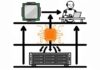
The foundation of this tool is simple. You sign up for a Google account. This account is free. Once logged in, you can build personal or public calendars. The magic isn’t in the interface, though. It is in the infrastructure. Google stores your data on its cloud computing servers. This might sound like corporate jargon, but it changes everything about how you work.
Think about old-school desktop software. You installed it on one machine. The data lived on that hard drive. If your laptop broke, or if you were stuck in a coffee shop without it, your schedule vanished. You were locked out of your own life.
Google Calendar breaks that tether.
Because the calendar lives on the web, your schedule travels with you. You can check your meetings from a work PC. Then switch to a tablet. Then check it on a phone. Any device with an internet connection works. You do not need to install heavy software updates. You do not need to sync files manually. The browser is the client. The server is the source of truth.
This accessibility explains the rapid adoption. Executives use it to navigate back-to-back meetings. Socialites use it to coordinate events. Disorganized folks use it to stop forgetting birthdays. The utility is universal because the friction is gone. You are no longer tied to a specific piece of hardware. Your time is accessible, anywhere, instantly.
“The user doesn’t have to download special software to access the calendar — all access is through a Web browser.”
This freedom is what separates modern cloud tools from the past. It is not just about convenience. It is about reliability. If you lose your phone, your schedule is still safe on Google’s servers. You can log in elsewhere and recover your life in seconds. That is the value proposition. That is why it is growing in popularity. It solves the problem of being unreachable. It ensures that when you need to know what is next, the answer is there. Always.
Cloud storage changes the game for scheduling. When your calendar lives on the Internet, sharing isn’t just possible—it’s trivial. You stop playing email tag to find a free slot. Instead, you look at a shared view.
Want to see if a colleague using Google Calendar is free this weekend? If they grant you access, you see their available time in real time. Conflicts pop up instantly. You adjust your plans before they become problems. It’s not magic. It’s just visibility.
But the tool only works if people actually use it. Google Calendar won’t organize your life for you. It makes the mechanics easier. You still have to show up.
Browser Requirements
Compatibility matters. You need a browser that supports the features Google Calendar relies on. Specifically, you must enable Javascript and cookies. Without them, the interface breaks.
Supported browsers include:
- Microsoft Internet Explorer 6.0 or later
- Mozilla Firefox 2.0 or later
- Apple Safari 3.1 or later
Older browsers won’t cut it. If you’re stuck on IE5 or Firefox 1.5, you’re looking at a broken experience. Upgrade or switch. It’s that simple.
Core Features
What can you actually do with it? The basics are straightforward. Create events. Send invitations. Set reminders. Share views. These features form the backbone of digital scheduling. They don’t need to be complex to be effective. They just need to work.
Managing your time blocks and views
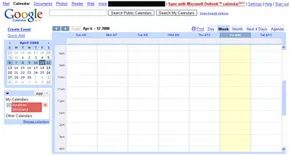
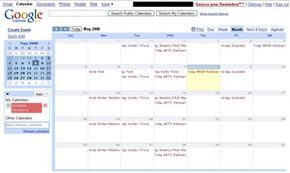
The interface is deceptively straightforward. On the left, a slim sidebar holds a miniature monthly grid. It tracks the current month and highlights today’s date so you never lose your place. The rest of the screen is dominated by the main event area.
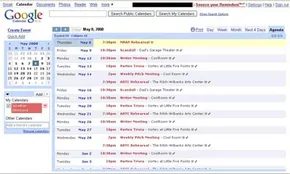
You have four primary ways to look at your schedule. Day, week, and month are standard. There’s also a condensed “next four days” view for people who hate looking too far ahead. Then there’s the agenda view. It strips away the grid entirely. You get a plain list of events. It’s cleaner. Some people prefer it for readability.
But the layout is secondary to the mechanics of Google Calendar time blocking. This is where the software actually does the heavy lifting.
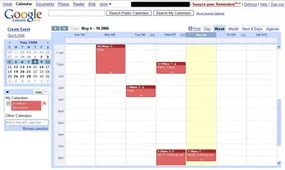
Regardless of which view you are using, you can reserve slots. The interaction is tactile. In day, week, or the four-day preview, you click and drag vertically. You snap to thirty-minute increments. It feels instant. A dialog box pops up immediately. You fill in the title, add guests, or set a reminder.
Month view changes the physics slightly. Here, you aren’t dragging down a single column. You are dragging across a row of days. This is how you handle multi-day events. It is the only logical way to block out a vacation or a business trip without manually entering the same event seven times.
“In the month view, you can block out time for multiple days. This is particularly useful if you need to set aside time for trips and vacations.”
The simplicity is intentional. There are no complex menus to navigate before you lock in a slot. You see the gap. You drag into it. You label it. That’s the core loop. It works because it removes friction. You stop thinking about the tool and start managing your actual availability.
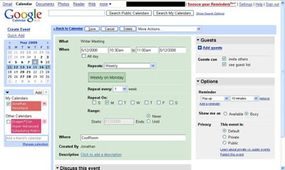
Structuring Your Entries
Start with the basics. A subject line is enough to get by. Or, go deeper. Add a location. Tack on a short description. If something happens weekly or annually—like a team standup or your kid’s birthday—use the repeat function. It saves time.
Google Calendar looks a lot like the rest. Apple Calendar. Outlook. The feature set is standard. But Google leans on its own engine to stand out. The standout feature? Search.
You aren’t limited to your own events. Google Calendar taps into Google search technology. Type in a query. It scans your private calendars. It also scans public calendars on Google’s system. This changes how you find availability. You can see open slots across multiple sources instantly.
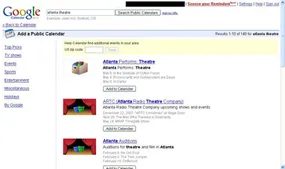
You’re heading to a conference. The organizers dropped the schedule online as a Google Calendar file. Instead of manually copying dates, you just search for the event. Google Calendar serves up a search engine results page (SERP ) tuned specifically for calendar data. You pick the right entry. The sync happens automatically. Suddenly, your personal calendar is packed with sessions, breakouts, and dinner plans.
This isn’t just about importing data. It works for your own mess, too. If you juggle multiple calendars—some public, some locked down—the search function digs through them all. It returns a SERP showing exactly where specific events land across your different schedules. You see the overlap. You spot the conflicts.
These features barely scratch the surface. But before we dive into the advanced stuff, there’s one integration that changed how most of us work.
The Invite is in the (G)Mail!
Google didn’t just put Calendar and Gmail in the same account. They fused them. When you’re drafting an email to someone, there’s now an option to attach an event invitation. You click it. A form pops up. You fill in the time, location, and details. Google Calendar adds the event to your own view instantly.
Then it sends the invite.
If the recipient uses a compatible program—Google Calendar or Microsoft Outlook, for instance—the invitation lands in their inbox like any other email. But it’s smarter. They click “Accept.” Boom. The event appears on their calendar too. No manual entry. No typos. No “I thought we were meeting on Tuesday.”
This is how most people actually use the tool now. Not by digging through menus, but by emailing colleagues and letting the software handle the scheduling logistics.
Advanced Google Calendar Features
Most calendar apps live on your hard drive or a local area network (LAN). You install them. You own the data. It’s a closed loop. Google Calendar breaks that model. The entire application, along with every event and reminder, resides on the Web. This isn’t just a preference; it’s a architectural choice that enables features impossible for desktop-bound software to replicate.
The SMS Connection
One of the most direct benefits of this cloud-first approach is SMS support. Cell phones have used Short Message Service for decades, but integrating it with a web service requires infrastructure most local apps don’t have.
Google lets you register a phone number to receive alerts. When a meeting approaches, an SMS hits your device. It’s free from Google, but check your carrier plan. If you send too many texts, your provider might charge you. The service works because the reminder engine sits in the cloud, not on your laptop.
Gadgets and the Developer Ecosystem
Google didn’t just build a calendar. They built a platform. They opened their Application Programming Interface (API ) to developers. The result? Google gadgets.
These are small, modular apps that plug into the interface. Developers use the API to create tools that enhance your schedule. You aren’t limited to date and time. You can embed a Google Map showing the exact location of a client meeting. You can attach a relevant photograph. The possibilities are nearly limitless because third-party code runs alongside Google’s own.
Invitations and Shared Forums
Sending invites is straightforward but powerful. You create the event. You click “add guests.” You type in email addresses. The system dispatches the emails automatically. When guests respond, the status updates right on the event listing. No manual tracking. No chasing down replies.
If you publish or share a calendar, the dynamic shifts from a personal tool to a collaborative space. Comments appear on event entries. People discuss upcoming appointments. Teams debrief after meetings. The event page becomes a forum. It’s less about scheduling and more about communication.
The Offline Problem
Here is the catch. Being a Web service means you need the Web.
If your connection drops, the calendar vanishes. There are rumors of offline capabilities, but they haven’t materialized fully. For now, you have two workarounds.
- Sync with Microsoft Outlook. You can mirror your Google Calendar in Outlook. Outlook works offline. You can view your schedule without internet access. The downside? You need a license for Outlook. It costs money.
- Third-party sync tools. Independent developers have created apps that sync your Google Calendar to your device. These allow you to view and edit events offline. The quality varies. Some are robust. Some are buggy. You are relying on someone else’s code to bridge the gap between the cloud and your pocket.
This reliance on connectivity is the fundamental trade-off. You gain access from anywhere, but you lose the guarantee of access when it matters most. What happens when the server goes down? Or when you’re on a plane with no Wi-Fi? That’s a risk you take with Web services.

Google rarely pulls back the curtain on its internal machinery. The specific engineering behind Google Calendar remains largely opaque to the public. We know they are secretive. We don’t know the exact blueprints. But we can infer a lot from how the system behaves and what technical standards Google generally adheres to.
The Client-Server Model
Think of Google Calendar as a classic client/server system. This is a fundamental concept in internet infrastructure. The client is you. It’s the device requesting a service. The server is Google’s backend. It provides that service.
Both sides need software to communicate. Sometimes a single computer acts as both. It requests data and serves it up.
Java on the Backend
On the server side, Google relies heavily on Java. Developed by Sun Microsystems, Java is an object-oriented computer programming language. This design allows programs to run independently of the underlying hardware or other applications.
Java applications handle the heavy lifting on the back end. They process your data. They manage your events. They keep the lights on.
Javascript on the Front End
You, the user, only see the client side. This is the web page you interact with daily. It is enhanced by Javascript.
Don’t confuse Javascript with Java. They are completely different. Java builds standalone applications. Javascript beefs up web services. Javascript cannot build programs outside of a web browser. It’s strictly for enhancing the user experience within the page.
That’s what outsiders know. The rest is educated guessing.
Hardware: Cheap but Scalable
Google tends to avoid cutting-edge, expensive hardware. They don’t invest in high-end servers that cost a fortune. Instead, they buy inexpensive hardware. It integrates with existing networks. It lacks the bells and whistles of premium equipment. But it works.
This approach makes the system scalable. Adding more capacity is cheap. You just plug in more machines. You don’t need to overhaul the entire infrastructure.
Server Roles and Redundancy
A likely hardware setup includes application servers and database servers. The application servers run the logic. They handle calendar functions and integrate with other Google apps. The database servers store the actual data.
There might also be control or administrative servers. These act as gatekeepers. They manage access and security protocols.
Using cheap hardware introduces a trade-off: reliability. Inexpensive machines break more often. Google knows this. They design their file systems around failure. They use redundancy. They store the same data on multiple machines. If one server fails, another takes over instantly. The goal is minimal service interruption. Your data stays safe.
Datacenters and Racks
Google doesn’t disclose how many specific machines run Calendar services. But they have massive datacenters. These are buildings housing computer equipment. The servers sit in metal shelving units called racks.
A large datacenter can hold thousands of servers. How many run Calendar? Only insiders know that number.
Security Concerns
Trusting private data to a third party is risky. Even if you trust Google, security issues persist. Brian Krebs, a computer security reporter, highlighted this in a Washington Post blog. He described a network admin who accidentally linked sensitive info to a public Google Calendar. Krebs found the leak by searching for “password.”
Google claims to take every measure to protect your information. But some responsibility falls on you. Misconfiguration happens. Humans make mistakes.
Frequently Answered Questions
How do I get to my calendar?
On most devices, you can find your calendar in the app drawer.
Lots More Information
Related HowStuffWorks Articles
- How Google Works
- How Gmail Works
- How Google Docs Works
- How Google Earth Works
- How the Google File System Works
- How Hackers Work
- How Home Networking Works
- How Internet Infrastructure Works
- How Internet Search Engines Work
- How Microprocessors Work
- How Operating Systems Work
- How Semantic Web Works
- How Web Pages Work
- How Web Servers Work
More Great Links
- Google Calendar
- The Official Google Blog
Sources
- “Calendar Gadgets and Reference Guide.” Google Code. http://code.google.com/apis/calendar/calendar_gadgets.html
- “Client/Server Software Architectures — An Overview.” Carnegie Mellon Software Engineering Institute. http://www.sei.cmu.edu/str/descriptions/clientserver_body.html
- Google Calendar Help Center http://www.google.com/support/calendar/
- Google Calendar Overview http://www.google.com/googlecalendar/overview.html
- Krebs, Brian. “A Word of Caution About Google Calendar.” Washington Post. July 6, 2007. http://blog.washingtonpost.com/securityfix/2007/07/google_calendar_goofs.html
- Sjogreen, Carl. “It’s about time.” The Official Google Blog. April 13, 2006. http://googleblog.blogspot.com/2006/04/its-about-time.html
- Van Couvering, David. “Google Calendar Offline Talk and Demo.” Java.net. Oct 5, 2006. http://weblogs.java.net/blog/davidvc/archive/2006/10/google_calendar.html